


 English (EN)
 Русский (RU)
 Українська (UK)
 español (ES)
 Türkçe (TR)


Best Trust Wallet Alternatives: Top 8 Wallets for USDT TRC-20
8 reliable alternatives to Trust Wallet for USDT TRC-20: full TRON support, seed phrase import, energy management and minimal fees for USDT transfers.
2025-12-02
129
Authorization is required only to use the service «Team energy»
Enter the e-mail you provided during registration and we will send you instructions on how to reset your password.
An error occurred while processing your request. Please try again later. If the problem persists, please contact our support team.
How to add, send, and receive USDT TRC-20 in Bitget Wallet and work correctly with the TRON network.
Bitget Wallet is a multi-chain wallet that works with more than 130 networks, and among them TRON occupies one of the key positions. The logic of working with TRON in this application has its own specifics; however, the basic mechanism of transferring USDT TRC-20 remains the same everywhere because it is defined by the network itself.
In this guide, we will cover three important points:
When users first start working with USDT TRC-20 in Bitget Wallet, they usually face two main concerns. First, the question arises of how to send USDT without making mistakes and losing funds. Then a second difficulty appears, related to fees. This guide is designed specifically to solve these practical issues.
For general information about features, security, access recovery, and the interface, you can refer to the review article “Bitget Wallet Review: A Powerful Web3 Hub with GetGas and 130+ Networks.”
All assets are displayed in the “Wallet” tab. The Bitget Wallet crypto wallet can operate in two modes:
To add USDT, open the asset list and tap the plus icon on the right side of the screen. In the search field, simply enter USDT. The application will display the token on different networks, so it is important to carefully check the label under the name. For working on the TRON network, choose the option marked “TRON” or “TRC-20” and ignore versions labeled “ETH,” “BSC (BEP-20),” “Solana,” and other networks.
The TRON network uses one shared address for all tokens, so TRX, USDT, BTT, and other assets on this network use the same TRON address. It is easy to verify: it always starts with the letter T.
To receive USDT TRC-20 in Bitget Wallet, follow a few simple steps:
Before the transfer is sent, make sure to inform the sender. They must select the TRON network, meaning TRC-20. If the sender mistakenly selects the Ethereum network and sends USDT ERC-20 to a TRON address, the coins will not arrive and recovery will be almost impossible.
After confirmation on the network, the incoming transaction will appear in the transaction history on the main page of Bitget Wallet. If desired, you can tap it and open the hash in the built-in explorer, which typically uses Tronscan.
To send USDT TRC-20 in Bitget Wallet, it is best to follow the same algorithm each time:
At this stage, it is important to monitor not only the amount and address, but also whether you have enough TRX to pay the fee or have connected an alternative gas payment method in advance.
To avoid being surprised by the fee amount at the moment of sending, it is useful to understand in advance how the TRON network calculates the cost of USDT TRC-20 operations and why TRX consumption sometimes seems too high.
USDT TRC-20 is a token that exists within the Tether smart contract on the TRON network. When you send this token, the network executes a contract call and uses Energy and Bandwidth resources. If your wallet does not have frozen TRX that provide Energy, or rented Energy, the application will simply deduct the required amount of TRX from your balance.
The transfer amount does not affect the cost of the operation. The network consumes the same amount of resources whether you send 10 USDT or 10,000 USDT.
The state of the recipient’s wallet affects the fee amount. This often causes confusion when one transfer costs less and another is noticeably more expensive.
On the TRON network, the general benchmarks are as follows:
This is the standard logic of the TRON network and does not depend on a specific application. Bitget Wallet only displays the final calculation in its interface.
Bitget has one specific feature worth noting. The application does not display the current Energy and Bandwidth balances directly. For this reason, the user sees only the final fee in TRX and may not understand how it is calculated.
You can still check and manage resources, but this must be done through the DApp browser. Inside the wallet, simply open Tronscan or Tronify to view your resources and freeze TRX if necessary. After freezing, the wallet will start using the received Energy and Bandwidth instead of burning coins.
Another advantage of Bitget is related to the GetGas feature. If you do not have TRX to pay the fee, the application offers a quick way to top up your balance via GetGas. In some cases, this is accompanied by bonuses or discounts, which partially offset the costs. The user funds a special balance, and the wallet automatically adds TRX at the required moment.
If there is no TRX on your balance, you can obtain it directly inside the Bitget Wallet crypto wallet in two main ways:
Both methods are convenient when you need to quickly solve the fee issue. However, convenience comes at a cost, since the final price includes the provider’s fee and a possible markup over the market rate. When working with larger amounts, it is better to plan in advance where you buy TRX.
When you send USDT TRC-20, the TRON network either uses your Energy or burns TRX from your balance. Simply allowing the system to automatically deduct TRX is almost always the most expensive option.
Buying TRX solely for fees is inconvenient. Freezing a large amount to obtain stable Energy is also not suitable for everyone: the capital is locked for at least 14 days, and you lose flexibility. This format makes sense for active TRON ecosystem users, but not for occasional or periodic transfers.
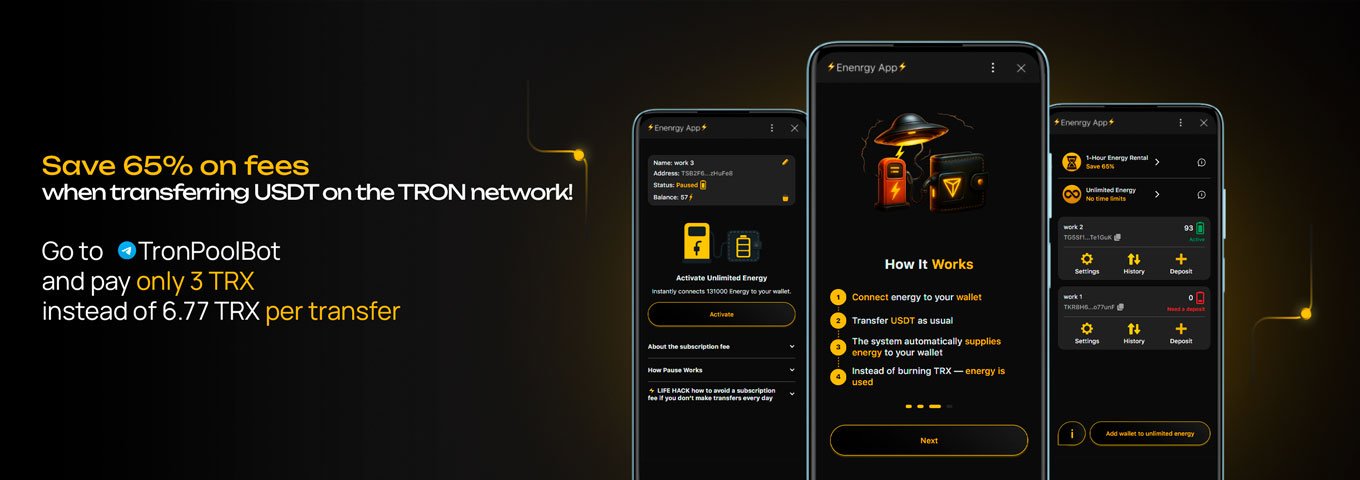
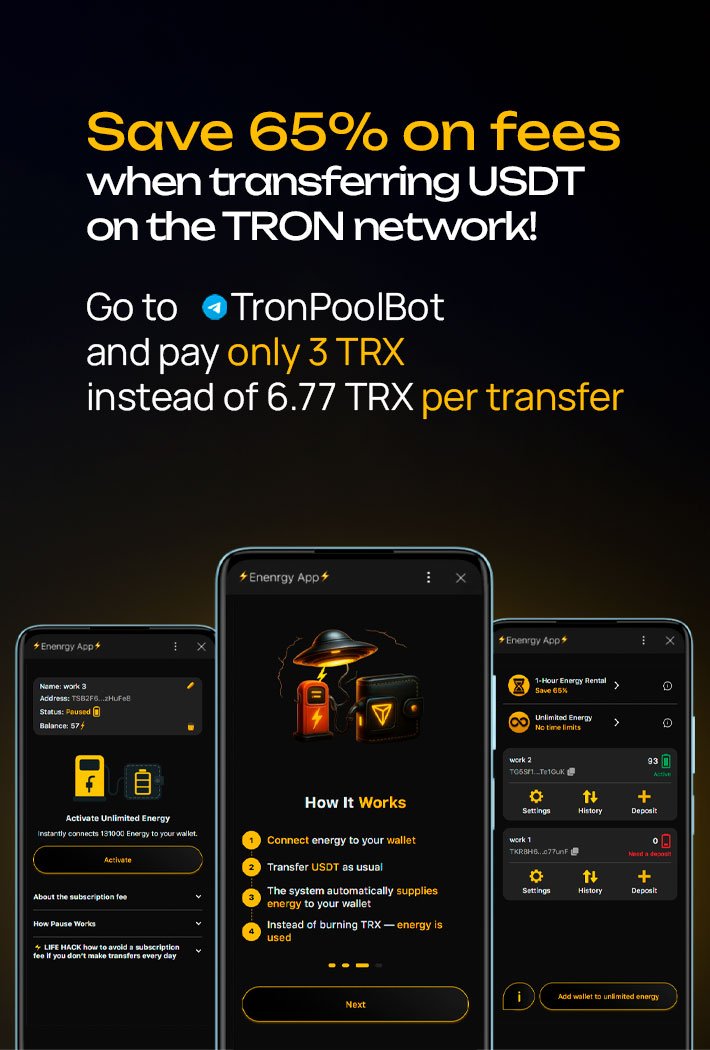
An alternative is to rent Energy through a specialized service, such as Tron Pool Energy. In this case, you pay for a specific amount of resource for the required operation and do not keep excess TRX on your balance.
| Transfer Type | Energy Required | Via Tron Pool Energy | By Burning TRX |
|---|---|---|---|
| Address with existing USDT | 65000 Energy | 3 TRX (~$0.8) | ~$1.9 |
| New address (no USDT yet) | 131000 Energy | 6 TRX (~$1.6) | ~$3.8 |
The difference is noticeable even for a single operation. In percentage terms, savings can reach up to 65%, especially with regular transfers.
At the same time, the connection process remains simple. You do not need to share wallet access or use approve — the service only requires your public TRON address. After paying for the selected Energy package, the resource is linked to your address, and during the next transfer, the fee is deducted from rented Energy instead of burning TRX.
How Unlimited Energy Works with Bitget Wallet
Connection takes only a few minutes:
Important: the service only requires your public TRON address. Seed phrases, private keys, and wallet access are not required.
Bitget Wallet is suitable for working with USDT TRC-20, both for one-time transfers and for regular use of the TRON network. The main rule is to carefully check the selected network and token type before each operation, and not forget to review the fee, especially when sending USDT to a new address.
The wallet offers several ways to handle fees. For users who value convenience, built-in tools such as Swap, P2P, and GetGas allow quick access to TRX directly inside the application. More experienced users can open the DApp browser and work through Tronscan or Tronify, where TRX staking and manual resource management are available. For maximum savings, renting Energy via services such as Tron Pool Energy remains an option, allowing transfers with minimal costs and without mandatory TRX purchases.
Yes, Bitget Wallet supports the TRON network and TRC-20 standard tokens, including USDT. For correct operation, select the TRON network and add the USDT token marked TRC-20. After that, you can send and receive transfers without using bridges.
You can add USDT TRC-20 through the “Wallet” tab by tapping the plus icon and entering USDT in the search field. Make sure to select the version labeled TRON or TRC-20, not ERC-20 or BEP-20. After adding it, the token will appear in the asset list.
Tap “Send,” select USDT TRC-20, paste the recipient’s TRON address, and enter the amount. The confirmation screen displays the fee in TRX. After checking the details, confirm the transfer using your PIN code or biometrics.
After sending or receiving, open the transaction history and follow the transaction hash in the built-in explorer. Tronscan is typically used, where confirmations, fees, and participant addresses are displayed.
You can reduce costs by obtaining Energy — through TRX staking or by renting the resource. For example, the Tron Pool Energy service allows you to connect Energy via a public TRON address without sharing keys and pay for transfers without burning TRX.
Best Trust Wallet Alternatives: Top 8 Wallets for USDT TRC-20
8 reliable alternatives to Trust Wallet for USDT TRC-20: full TRON support, seed phrase import, energy management and minimal fees for USDT transfers.
2025-12-02
129

How to Avoid Scams and Phishing in Crypto: Practical Protection
Fake sites, bots, and cloned apps steal your seed phrases and access. Learn how to stay safe and quickly regain control of your crypto.
2025-10-23
129

Sign, Confirm and Approve: safe usage in Web3
How Sign, Confirm and Approve differ, how to read Web3 signature windows and avoid hidden permissions that grant access to your tokens
2025-11-24
185