



 English (EN)
 Русский (RU)
 Українська (UK)
 español (ES)
 Türkçe (TR)


Best Trust Wallet Alternatives: Top 8 Wallets for USDT TRC-20
8 reliable alternatives to Trust Wallet for USDT TRC-20: full TRON support, seed phrase import, energy management and minimal fees for USDT transfers.
2025-12-02
129
Authorization is required only to use the service «Team energy»
Enter the e-mail you provided during registration and we will send you instructions on how to reset your password.
An error occurred while processing your request. Please try again later. If the problem persists, please contact our support team.
Complete guide to USDT TRC-20 in Gate Web3 Wallet: adding the token, TRON address, transfers, and fees.
Gate Web3 Wallet is integrated into the Gate.io exchange ecosystem and operates as a powerful multi-chain wallet supporting more than 170 networks. Because of this flexibility, it can be difficult to navigate specific tokens, and most questions arise around the most popular stablecoin — USDT on the TRON network under the TRC-20 standard.
In this article, we will focus on practical aspects that matter in real financial use:
This guide remains strictly practical. We do not repeat a full wallet overview but focus on three user tasks: receiving, sending, and optimizing fees for USDT TRC-20 in Gate Web3 Wallet.
If you need a broader overview of security, closed-source code, features such as BountyDrop, and DApp browser functionality, it is better to first read a separate review of Gate Web3 Wallet.
In a multi-chain interface, it is easy to get confused, especially when the same token exists across multiple networks. Therefore, the first step is always the same: make sure that USDT on the TRON network is selected in the wallet.
On the main screen of the Gate wallet, open the assets section. In most cases, USDT is already listed among popular tokens. If it is not visible, you need to add it manually.
The process is as follows:
After this, USDT TRC-20 will appear in the main asset list and will be available for receiving and sending.
When you tap on USDT, the wallet often asks you to select a network. This is where most mistakes occur.
Carefully check that the TRON network is selected. Do not rush to confirm Ethereum, BSC, Arbitrum, or Solana, even though USDT is available there as well. Only the option labeled TRON or TRC-20 is relevant here.
A TRON wallet address always starts with a capital letter T. If you see an address in a different format, such as one starting with 0x, it is not TRC-20 but an address from an EVM-compatible network.
The rule is simple: if the address starts with T, the TRON network is selected. Only in this case should you receive or send USDT TRC-20.
Once the required token appears in the list, you can receive transfers. Here again, it is important not to confuse networks to avoid losing funds.
The basic flow is:
The wallet will display your TRON address and a QR code. The address must start with T. You can copy it with a separate button and send it to the sender or show the QR code.
The sender must not only paste the address but also select the same TRON or TRC-20 network in their system. Sending USDT to a TRON address via another network, such as Ethereum, will result in a loss of funds, since the token will be transferred to a different blockchain and will not appear on your TRON address.
If you already use the Gate.io exchange, you can quickly move USDT from your exchange account to your Web3 wallet within the same ecosystem. In the exchange interface, select withdrawal not to an external address but to Gate Web3 Wallet. The system will automatically insert your TRON address and execute an internal transfer.
This option is convenient because you do not need to copy the address manually or risk choosing the wrong network. You simply specify that you want to send USDT TRC-20 to your non-custodial wallet inside Gate.
After initiating a transfer, open the history section in the Web3 wallet to check the status of the incoming transaction. If the transaction is already confirmed on the network but has not yet appeared in the wallet, you can check the transaction hash in the Tronscan explorer to verify that the transfer has been processed correctly.
Sending USDT TRC-20 in Gate Web3 Wallet is straightforward and similar to other TRON wallets. The key is understanding how the fee is calculated and what the confirmation screen displays.
The steps are:
Before confirming, the wallet displays a preliminary calculation showing the transfer amount and the estimated fee. Do not skip this screen automatically. Take a moment to review how much TRX will be burned and how much Energy will be used.
The TRON network calculates USDT TRC-20 transfer fees not based on the amount sent, but on the available resources of the sender’s address and the status of the recipient’s address.
USDT TRC-20 is implemented as a smart contract on the TRON network. Any transfer is a contract function call and therefore requires Energy and Bandwidth.
Bandwidth covers the data transmitted within the network.
Energy is consumed when executing the smart contract logic.
If your address does not have sufficient Bandwidth or Energy, the network burns TRX. The transfer amount, whether 10 or 10,000 USDT, does not affect the fee. What matters are the available resources and whether the recipient’s address is already active.
The TRON network distinguishes between transfers to activated and non-activated addresses. An activated address is one that already holds USDT TRC-20 or other tokens on the network.
Sending to an empty address requires more Energy and costs more.
A transfer to an already active wallet requires 65000 Energy and 345 Bandwidth or 6,77 TRX.
A transfer to an empty wallet requires 131000 Energy and 345 Bandwidth, or 13,37 TRX if resources are not managed manually.
One advantage of Gate Web3 Wallet is its correct handling of TRON resources. The wallet shows your current Energy and Bandwidth balances and estimates how many resources will be used before you confirm a transaction.
If Energy is insufficient, the app warns you that part of it will be covered by burning TRX and displays the estimated cost.
This visualization makes USDT TRC-20 transfers more predictable and allows you to decide in advance whether to top up TRX or rent Energy for a specific transaction.
Within the Gate ecosystem, there are several ways to add TRX to your balance.
The simplest option for exchange users is to buy TRX with USDT or another liquid asset in the exchange interface and then withdraw it not to an external address but to your Web3 wallet.
The system automatically inserts your address, and TRX is credited directly to your Gate Web3 wallet. This method keeps everything within one ecosystem and reduces the risk of address errors.
If you already have assets in the Gate wallet, you can swap part of them for TRX using the built-in exchange.
In the Swap section, select the source asset, such as USDT on another network or ETH, and choose TRX on the TRON network as the destination. The wallet routes the transaction through supported liquidity aggregators, often using major TRON DEX integrations.
This allows you to obtain TRX without switching to the exchange interface.
If you do not yet have an exchange account or other tokens, you can use fiat gateways within the Gate.io app. Select TRX, purchase with a card or other supported payment method, and then withdraw it to your Web3 wallet.
This option is usually more expensive due to payment provider fees and should be considered a backup solution.
TRX serves as a source of Energy and Bandwidth. Gate Web3 Wallet does not include built-in TRX staking; staking is available only in the exchange section of Gate.io.
To obtain sufficient Energy via staking, you need to hold a significant TRX balance. Buying TRX solely for fees means one transfer typically costs around 6.77–13.37 TRX. It is often more practical to pay for the resource itself rather than the token.
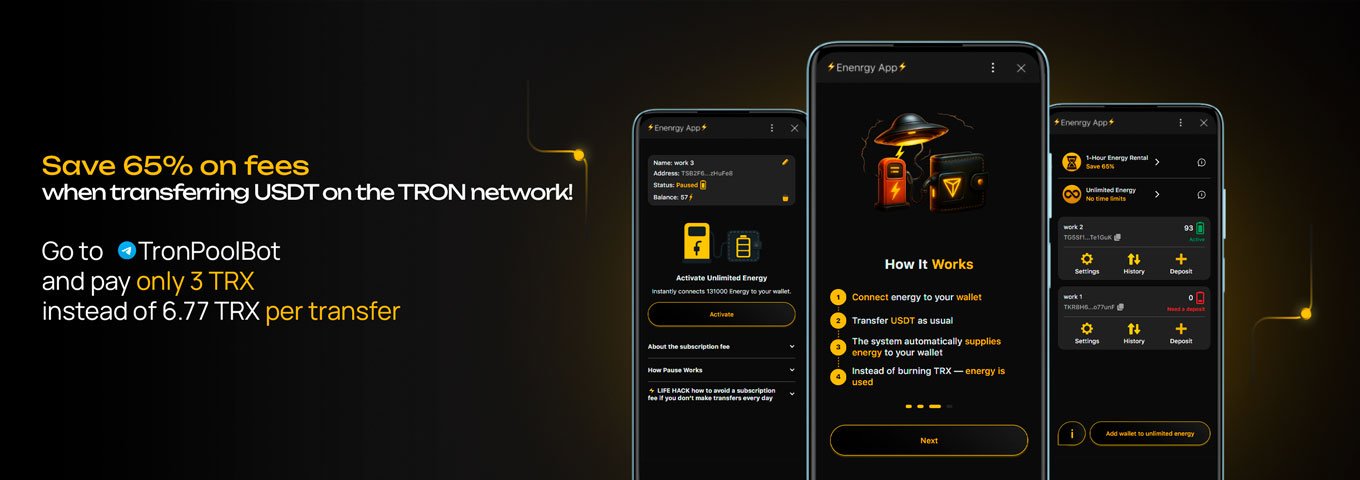
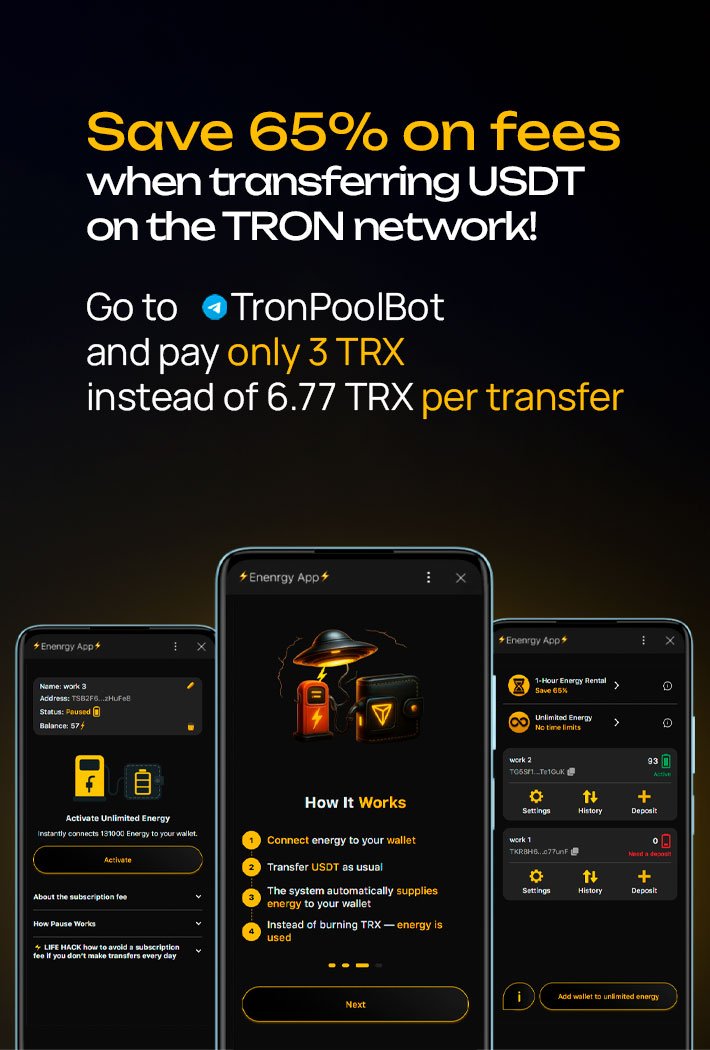
Through Tron Pool Energy, the same operation can cost 3–6 TRX, up to 65% cheaper than burning TRX directly.
The service offers flexible connection options for both occasional transfers and regular USDT TRC-20 activity, including corporate use cases.
As a result, there is no need to lock hundreds of dollars in TRX or constantly top up your balance. You pay only for the resources actually used and receive lower fees on the TRON network without unnecessary steps.
Gate Web3 Wallet is well suited for working with USDT TRC-20, especially if you already use the Gate.io exchange and want to manage on-chain assets and spot balances within a single ecosystem. The wallet clearly displays TRON resources, shows Energy and Bandwidth consumption before sending a transaction, and provides several ways to obtain TRX for fees.
The main advantage is fee transparency. You understand how Energy availability affects costs, how transfers to empty and activated addresses differ, and what steps to take to avoid overpaying for each USDT transaction.
The main limitation is the absence of built-in TRX staking in the Web3 wallet, as this function is moved to the exchange interface. For some users, this is a natural extension of the ecosystem; for others, it may feel like an extra step.
The practical conclusion is simple: whether you make occasional transfers or regularly send USDT TRC-20, consider renting Energy through Tron Pool Energy to reduce total costs and execute transfers with significant savings
Yes, Gate Web3 Wallet supports USDT on the TRON network under the TRC-20 standard. When adding the token, make sure to select the option labeled TRON or TRC-20.
When selecting a token, the wallet displays the network next to its name. For TRC-20, the network must be TRON, and the recipient address will start with the letter T. If the address starts with 0x, you are using Ethereum or another EVM-compatible network.
Yes. On the TRON network, one address is used for TRX and all TRC-20 tokens. You do not need to create a separate address for USDT.
No, TRX staking is not available within the Web3 wallet section. You need to use the Gate.io exchange interface for staking.
You can reduce costs by obtaining Energy either through TRX staking on the exchange or by renting the resource. For example, Tron Pool Energy allows you to connect Energy to your TRON address and execute transfers without regularly burning TRX.
Best Trust Wallet Alternatives: Top 8 Wallets for USDT TRC-20
8 reliable alternatives to Trust Wallet for USDT TRC-20: full TRON support, seed phrase import, energy management and minimal fees for USDT transfers.
2025-12-02
129

Unmasking Crypto Wallets: A Deep Dive into Arkham Intelligence
Learn how Arkham Intelligence deanonymizes crypto wallets, what it means for your privacy on the TRON network, and how to protect yourself using Tron Pool Energy. In-depth review and guide.
2025-08-08
188

What Is USDT Freezing and How to Avoid It
A USDT freeze is not a network error but a control mechanism. Learn how Tether locks wallets, how to check your address, and what steps help you avoid problems.
2025-10-14
162