



 English (EN)
 Русский (RU)
 Українська (UK)
 español (ES)
 Türkçe (TR)


Best Trust Wallet Alternatives: Top 8 Wallets for USDT TRC-20
8 reliable alternatives to Trust Wallet for USDT TRC-20: full TRON support, seed phrase import, energy management and minimal fees for USDT transfers.
2025-12-02
129
Authorization is required only to use the service «Team energy»
Enter the e-mail you provided during registration and we will send you instructions on how to reset your password.
An error occurred while processing your request. Please try again later. If the problem persists, please contact our support team.
Step-by-step guide to using USDT TRC-20 in MathWallet: how to select the TRON network, add the token, and send or receive transfers.
MathWallet is considered one of the most functional multi-chain wallets, but working with the TRON network in it is not as straightforward as one might like. The mechanics of transferring USDT TRC-20 at the blockchain level are the same everywhere, but the way MathWallet displays the fee and manages resources differs noticeably from other wallets and often raises questions from users.
In this article, we will look at:
The guide remains fully practical and concerns only USDT TRC-20. For a general overview of the wallet, security analysis, closed-source discussion, access recovery, and additional features, it is better to refer to the article “MathWallet Review: Web3 wallet with support for 150+ networks and an AI assistant”.
Before sending or receiving USDT TRC-20, you need to make sure that the correct blockchain is selected and that the required token is displayed in the asset list. In the MathWallet crypto wallet, you first select the network, and only then work with tokens inside it.
There is no single general list of assets across all networks in MathWallet, so the procedure is as follows:
After that, all tokens on the screen belong specifically to the TRON network.
Most often, USDT TRC-20 appears in the asset list automatically. If the token is not there, you can:
The check is simple. If you are in the TRON network and see USDT in its asset list, it means this is USDT TRC-20, not ERC-20 and not BEP-20. It is important to always look specifically at the selected network.
Receiving USDT TRC-20 comes down to providing the sender with the correct T-address and checking the network. In MathWallet, this requires just a few steps.
On the main screen of the TRON network:
This address is your TRC-20 address in the TRON network. Make sure to warn the sender that they must choose the TRON (TRC-20) network on the exchange or in their wallet. If USDT is sent to this same address but via the ERC-20 or BEP-20 network, the funds will go to another blockchain and, essentially, will be lost.
After sending, the transfer will appear in the transaction history. If desired, you can open the details and go to TronScan using the transaction hash to see the exact fee and status at the network level.
An outgoing transfer in MathWallet looks familiar, but it is important to pay close attention to the fee screen, because this is where the application often misleads users.
The step-by-step process is as follows:
At the blockchain level, this is always a call to the USDT smart contract, but the MathWallet interface does not always correctly display how much TRX will actually be burned. This is especially important if you frequently send USDT TRC-20 and pay attention to every fee.
To calmly relate to the fee numbers displayed by MathWallet, you need to understand how the TRON network calculates the cost of a transfer and why the amount changes depending on the recipient’s address and your resources.
A USDT TRC-20 transfer in TRON is a contract transaction. To execute it, the network needs resources:
If your wallet has a reserve of Energy obtained through TRX staking, the transaction consumes it. If there is no Energy, TRON burns TRX from your balance to pay for the smart contract execution.
The final cost depends not only on your balance, but also on the state of the recipient’s address:
Therefore, two transfers to different addresses may cost differently even with the same USDT amount.
Important: how MathWallet displays fees
The main issues start not in TRON, but in the wallet interface.
MathWallet does not show your current Energy and Bandwidth balance. The user does not see whether there are enough resources for the operation and how much TRX will be burned.
If there is no Energy, the application often shows an inflated fee amount. On the confirmation screen, you may see, for example, 26.9997 TRX, while the actual burn will be closer to 6,77 or 13,37 depending on the state of the recipient’s address. As a result, the user thinks the transfer costs almost 27 TRX, although the blockchain deducts noticeably less.
Because of this, MathWallet formally executes the transaction correctly, but visually frightens the user with numbers that do not match the actual network fee.
To pay fees and work with Energy in the TRON network, you must have TRX on your balance. In MathWallet, you can obtain it in different ways, and the choice depends on how you usually fund your wallets.
The most direct way to top up TRX from MathWallet looks like this:
You should understand that such a purchase goes through third-party providers. They charge their own fees, so in most cases it is cheaper to buy TRX on a centralized exchange such as Binance, OKX, or Bybit and withdraw the coins to your T-address in MathWallet.
Even if TRX is already in the wallet, there is no separate staking or freezing button inside MathWallet for obtaining Energy. Therefore, the path to Energy looks like this:
From a technical point of view, this is a working scenario, but for a beginner it looks like a complicated quest. At the same time, having Energy allows you to transfer USDT TRC-20 almost without fees.
When USDT TRC-20 transfers become regular, constantly burning 6,77–13,37 per transaction stops being comfortable. Staking TRX through TronScan is also not always convenient, especially if you do not want to freeze coins for a long time and deal with Stake 2.0.
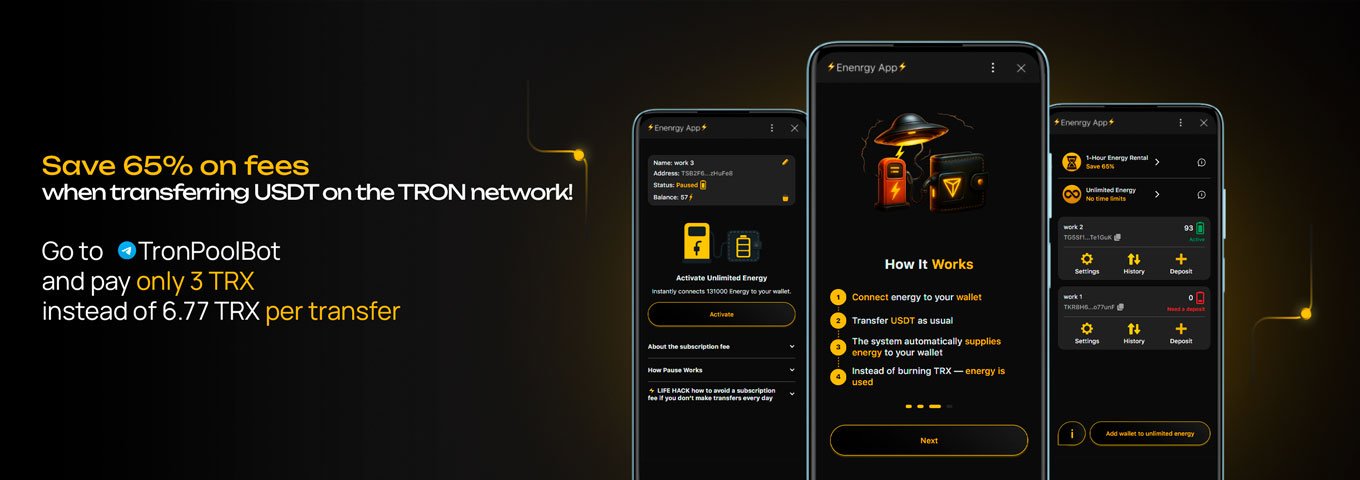
In such a situation, it makes sense to look at Energy rental. Instead of paying a TRX fee each time or manually freezing coins, you can rent Energy for a short period and calmly send several transactions in a row.
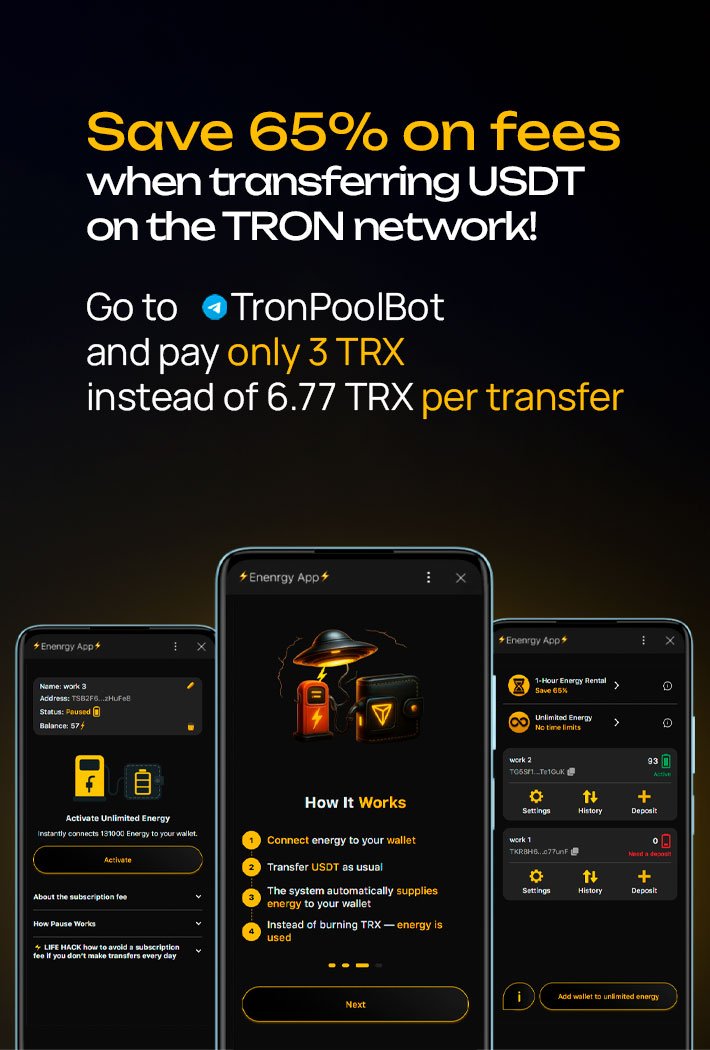
Specialized services, such as Tron Pool Energy, allow you to rent the required amount of Energy for a limited time, for example for 1 hour or unlimited. This is similar to buying a package of minutes from a mobile operator. You choose the resource volume and pay a fixed amount, while saving up to 65%.
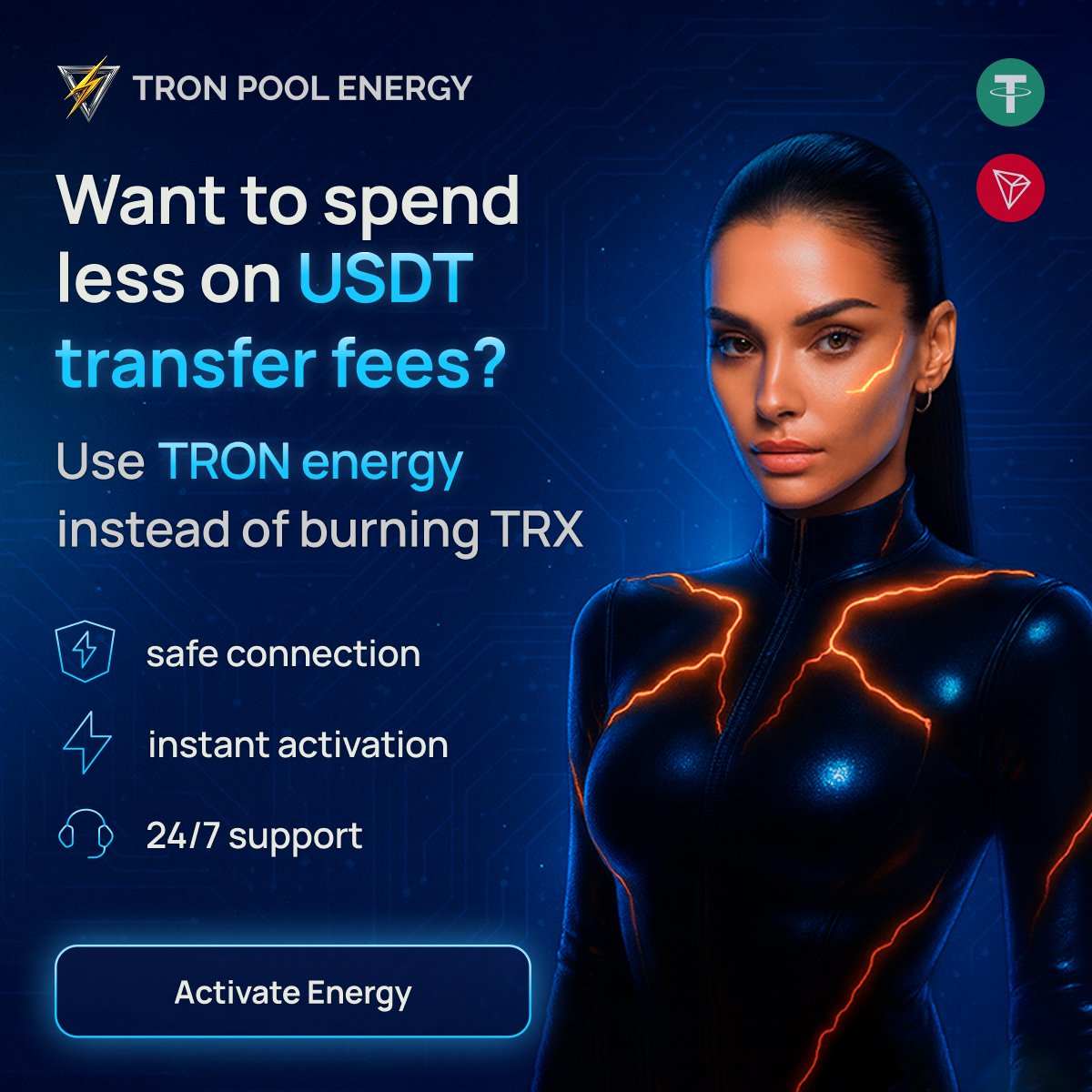
For those who regularly use USDT TRC-20, Energy rental becomes a more logical choice than constantly overpaying fees or dealing with complicated staking through TronScan.
The MathWallet wallet provides full access to USDT TRC-20 in the TRON network, but does not always make this experience comfortable. The wallet correctly executes transactions, however incorrect fee display and the absence of built-in TRX staking create unnecessary questions and risks of overpayment for the average user.
If you send USDT TRC-20 only occasionally, it is enough to keep a small TRX balance and carefully look at what the confirmation screen shows. If transfers occur frequently, it is more reasonable to rely on Energy rental through services such as Tron Pool Energy. This approach allows you to use MathWallet as a convenient interface for working with USDT TRC-20 without spending extra TRX on fees and without diving into the complex mechanics of staking.
Yes, MathWallet supports the TRON network and TRC-20 standard tokens, including USDT. For proper operation, you need to select the TRON network inside the application.
The address is displayed on the main screen after selecting the TRON network. It starts with the letter T and is used both for TRX and for USDT TRC-20.
Usually the token appears automatically after selecting the TRON network. If it is not in the asset list, it can be enabled through the token addition section.
Yes. After sending a transfer, you can open the transaction history and go to TronScan to view the status, hash, and real network parameters of the transaction.
There is no separate staking button in the main interface. To freeze TRX, you use a connection to TronScan through the built-in DApp browser.
Yes, since it is a non-custodial wallet. However, when purchasing TRX through built-in fiat gateways, third-party providers may request verification.
Yes, the wallet allows stable work with TRON. With frequent transfers, it is important to plan in advance how to manage network resources.
Yes. You can use Energy rental through the Tron Pool Energy service. This allows you to continue working through MathWallet while reducing fee expenses by up to 65%.
Best Trust Wallet Alternatives: Top 8 Wallets for USDT TRC-20
8 reliable alternatives to Trust Wallet for USDT TRC-20: full TRON support, seed phrase import, energy management and minimal fees for USDT transfers.
2025-12-02
129

Trading Strategies for Traders: From Scalping to Swing
Explore key crypto trading strategies — scalping, day, swing, and position trading. Learn how to choose the right approach for your experience.
2025-11-07
150
How to Spot Market Moves Like an Insider: Top 3 Must-Have Tools for Crypto Traders
Three services that give traders an insider’s edge: Lookonchain, Whale Alert, and TRON Pool Energy. Whale tracking, market monitoring, and fee savings.
2025-09-16
115