


 English (EN)
 Русский (RU)
 Українська (UK)
 español (ES)
 Türkçe (TR)


Best Trust Wallet Alternatives: Top 8 Wallets for USDT TRC-20
8 reliable alternatives to Trust Wallet for USDT TRC-20: full TRON support, seed phrase import, energy management and minimal fees for USDT transfers.
2025-12-02
129
Authorization is required only to use the service «Team energy»
Enter the e-mail you provided during registration and we will send you instructions on how to reset your password.
An error occurred while processing your request. Please try again later. If the problem persists, please contact our support team.
USDT TRC-20 in SafePal: adding the token, TRON address, Gas Station, and Tron Energy management.
SafePal is an advanced multi-chain wallet, so working with the TRON network here is convenient but follows its own logic. At the same time, the basic rules for USDT TRC-20 are the same across the entire network. Most often, users run into two practical questions. The first is how to send USDT correctly without mixing up the network and the address. The second is what the fee depends on and what Energy and Bandwidth mean in the interface.
In this guide, we will cover:
This is a practical guide specifically for working with USDT TRC-20. For general information about SafePal features, security, access recovery, and the interface, it is better to open the overview article titled “SafePal Wallet Review: A Unified Ecosystem for DeFi, NFTs, and Hardware Security.”
In SafePal, USDT TRC-20 is located in the main “Wallet” tab under the Coin sub-mode. First, the user selects the TRON network, and then sees the list of assets inside it, including TRX and TRC-20 tokens.
It is important to immediately confirm that the token is selected on the correct network. Under the USDT name in the coin list, there should be a TRON label. If the label says Ethereum, BSC, or Arbitrum, then this is a different version of USDT and it is not suitable for TRC-20.
If you add the token manually, you need to open coin search and enable USDT specifically on the TRON network.
There is also a simple extra check. Any TRON address in the SafePal wallet for TRX and for USDT TRC-20 starts with the letter T. If the address looks different, then another network is selected and you must not send USDT TRC-20 to it.
To receive USDT TRC-20 in SafePal, you first need to get the correct TRON address and share it with the sender:
The app will display your full TRON address and a QR code that you can easily send to the other person. Before the transfer, make sure to warn them that the transfer must be sent only on the TRON TRC-20 network.
After the transfer is sent, you can track it by the hash. In SafePal Wallet, the transfer details show the TxID. You can copy it and paste it into the search on the Tronscan website. The explorer shows the transaction status, time, sender and recipient addresses, and the amount. If the transaction is confirmed on Tronscan but the wallet balance has not updated yet, you just need to wait a little.
Sending USDT TRC-20 in SafePal is a standard token transfer, but the key details are on the confirmation screen:
At the final step, SafePal shows all key information. The user sees the sender and recipient addresses, the transfer amount, the network, and the fee block. This block is the most important part to review. It shows how much Energy and Bandwidth will be required and how much TRX will be spent if your own resources are insufficient. If anything looks suspicious, it is better to go back, verify the address and network, and only then confirm the transfer.
On the TRON network, USDT TRC-20 exists as a smart contract. Each transfer calls a function of this contract and consumes network resources. To process the operation, TRON uses two types of resources:
Most users have Bandwidth by default, and part of this resource is restored regularly at no cost. Energy is considered the main paid resource.
You can cover Energy in three ways:
The more Energy a user has, the less TRX is burned in fees when calling the USDT TRC-20 contract.
The main fee factor: whether the recipient has USDT
An important detail depends on the recipient wallet state. If the address already holds USDT TRC-20, the network uses fewer resources.
The benchmarks are:
This means the first transfer to a new address costs almost twice as much Energy as subsequent transfers. This is not a SafePal issue, but a feature of how the USDT smart contract works on TRON.
On the transfer confirmation screen, the SafePal wallet shows how much Bandwidth and Energy will be required and how much TRX will go toward fees. The user sees the resource estimate block and the final cost of the operation.
If there is TRX on the balance, the wallet will deduct the required amount to cover Energy. If the user has already frozen TRX and accumulated an Energy balance, the fee can be partially or fully covered by these resources. In that case, TRX spending at the moment of transfer may be minimal or equal to zero.
Sometimes a user opens SafePal Wallet and realizes they have USDT but no TRX for fees. In this case, you can buy TRX directly in the app, but it is best viewed as an emergency option rather than a primary one.
The steps are:
This method is fast, but it has major downsides. The minimum purchase amount is usually around 50 USD, and provider fees are typically around 5–6 percent. This is not cost-effective if you only need 2–4 USD worth of TRX to pay for a single transaction. Therefore, it makes sense to treat this option as a backup rather than a regular gas source.
To avoid turning USDT TRC-20 transfers into constant “gas” purchases of TRX, you can set up a more convenient approach in SafePal. Below are three working options that reduce costs without making things unnecessarily complicated: from classic staking to Energy rental via Tron Pool Energy and the built-in Gas Station.
This approach is suitable for users who keep TRX in SafePal Wallet and regularly send USDT TRC-20. Instead of burning TRX every time, you can freeze part of your coins and receive Energy to cover fees.
The steps are:
The staking tab shows your current Energy balance. The more TRX is staked, the more transfers you can make without additional burning.
However, staking is not always a universal solution:
Therefore, staking is logical for those who actively operate on TRON and are willing to keep part of their capital in TRX. For occasional transfers or mostly working with USDT, this option may be less flexible.
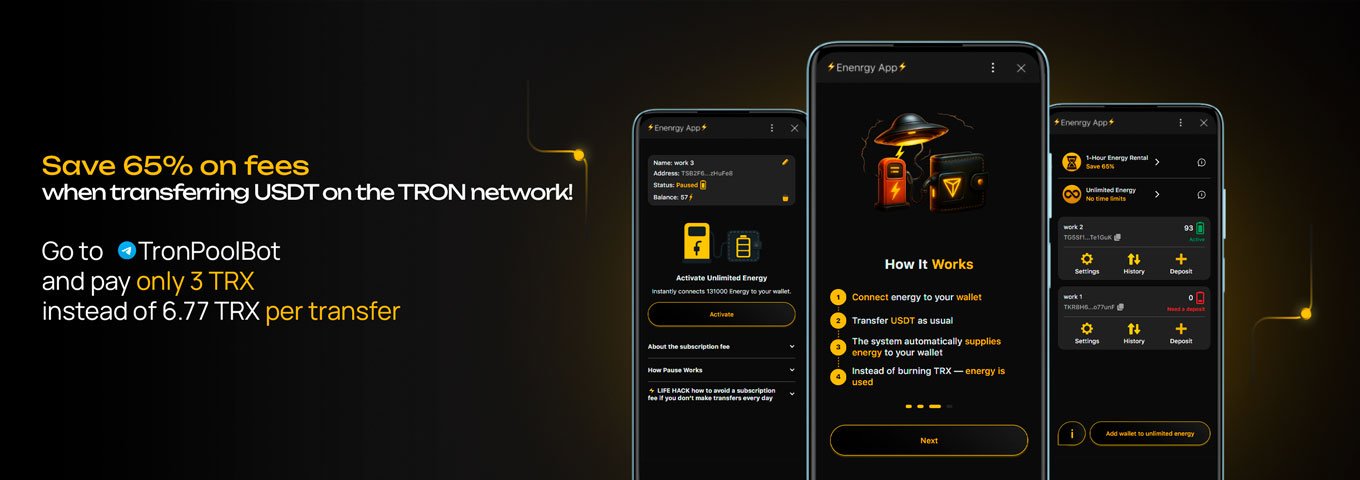
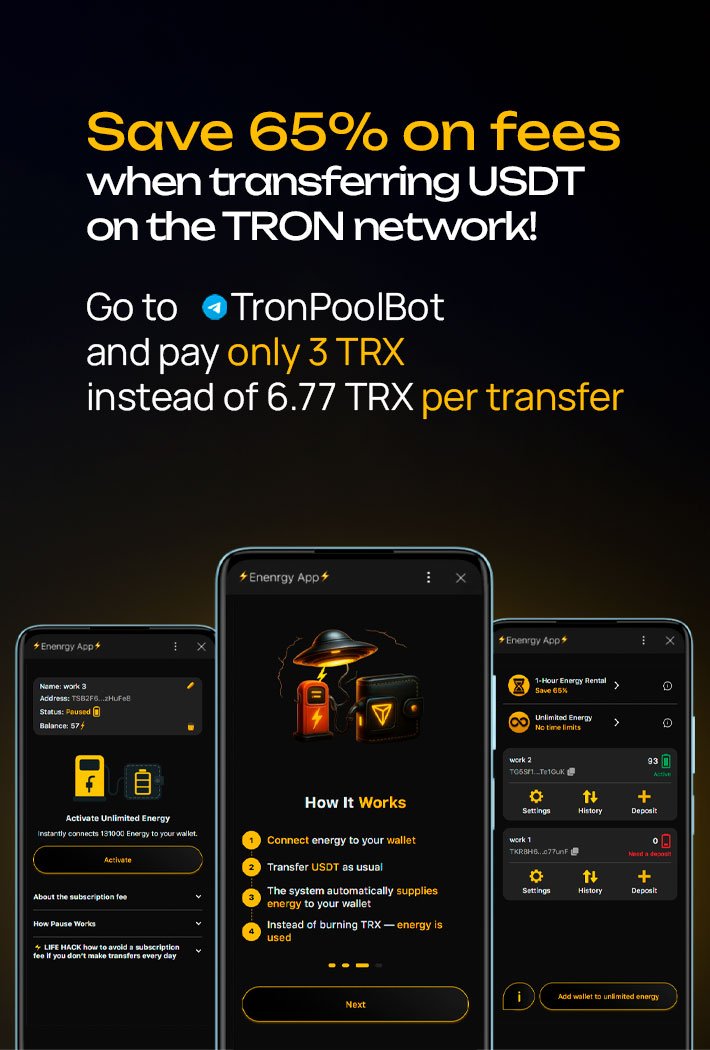
Renting through Tron Pool Energy is suitable for those who want cheaper USDT TRC-20 transfers without buying and freezing TRX, while keeping the familiar SafePal usage flow. The service offers three formats, and the user only needs to choose the one that best matches their style of using the TRON network.
If you only need one calm transfer or a couple of operations, it is most convenient to rent for 1 hour. For this, you only need to:
The one-hour interval provides a comfortable buffer, so there is no rush or risk that Energy will run out at the worst moment, as can happen with services that limit sessions to 10–25 minutes.
For those who make many transfers during the day, it is more convenient to connect Unlimited Energy or use Team Energy. Typically, this includes stores, exchanges, arbitrage traders, and anyone who constantly works with USDT TRC-20. The process is simple:
After activation, Energy is credited automatically for each transaction, and the user no longer needs to think about how to send USDT without buying TRX. That is why Tron Pool Energy remains the baseline option for those who work seriously with USDT TRC-20 and want to consistently save on gas on the TRON network.
Gas Station remains a convenient built-in tool when you want the wallet to handle gas payments automatically and not have to think about TRX and Energy.
The user:
After that, SafePal uses this balance to pay fees on the TRON, BSC, and Ethereum networks. Thanks to an internal discount, the final gas cost is lower than with direct TRX payment.
The advantage is that on TRON you can pay fees in USDT. You do not need to hold TRX: the wallet will automatically deduct the required amount from the Gas Station balance when sending USDT TRC-20 and other transactions.
This option is noticeably more convenient than burning TRX directly, but in terms of per-transaction price and flexibility, rental through Tron Pool Energy often wins. Therefore, Gas Station makes sense as an additional SafePal service, while the main fee savings are usually achieved through Tron Pool Energy.
SafePal is convenient for working with USDT TRC-20 because it combines a clear interface with visible Energy and Bandwidth resource information. The user sees the transfer cost, can verify the address and network, and always understands how the fee is covered.
The main benefit of this approach is that the wallet offers three built-in ways to save. These are TRX staking in the Earn tab, Energy rental, and Gas Station, which allows paying gas in USDT with a discount of up to 50 percent. Once you understand these mechanics, USDT TRC-20 transfers in SafePal become predictable in cost and convenient even for active TRON usage.
Before sending or receiving, check the network label under the token name. For TRON usage, the network must be TRON. Also check the address format: on TRON it starts with the letter T.
Yes. On the TRON network, the same address works for TRX and all TRC-20 tokens. This simplifies usage but requires attention when selecting the network.
The transfer amount does not affect the fee. The difference comes from the recipient wallet state and the sender’s available TRON Energy. The first transfer to a new address usually requires more resources.
On the transaction confirmation screen, you will see a block showing Energy and Bandwidth consumption. If resources are insufficient, the wallet shows how much additional TRX will be deducted.
Yes, but only if you have a TRON Energy balance (for example, via staking or Energy rental) or if Gas Station is enabled. Without resources, the network will automatically burn TRX, so a fully “gasless” transfer is not possible.
In the transaction details, copy the TxID and check it in a TRON explorer. If the transaction is confirmed on the network, the app balance usually updates with a short delay.
Best Trust Wallet Alternatives: Top 8 Wallets for USDT TRC-20
8 reliable alternatives to Trust Wallet for USDT TRC-20: full TRON support, seed phrase import, energy management and minimal fees for USDT transfers.
2025-12-02
129

How to Avoid Scams and Phishing in Crypto: Practical Protection
Fake sites, bots, and cloned apps steal your seed phrases and access. Learn how to stay safe and quickly regain control of your crypto.
2025-10-23
129

Automation in Trading: How Crypto Bots Work
What’s behind trading bots: how they work and why even perfect code doesn’t guarantee profit.
2025-11-11
129