


 English (EN)
 Русский (RU)
 Українська (UK)
 español (ES)
 Türkçe (TR)


Best Trust Wallet Alternatives: Top 8 Wallets for USDT TRC-20
8 reliable alternatives to Trust Wallet for USDT TRC-20: full TRON support, seed phrase import, energy management and minimal fees for USDT transfers.
2025-12-02
129
Authorization is required only to use the service «Team energy»
Enter the e-mail you provided during registration and we will send you instructions on how to reset your password.
An error occurred while processing your request. Please try again later. If the problem persists, please contact our support team.
A complete guide to using USDT TRC-20 in OneKey Wallet — from adding the token to sending transfers without mistakes.
OneKey Wallet works as an advanced multichain tool, and it treats the TRON network on a mature, professional level. The wallet correctly displays Energy and Bandwidth resources, provides access to TRX staking, and transparently shows how fees for USDT TRC-20 transfers are calculated.
At the same time, the transaction mechanism itself is the same across the entire TRON network, but the fees raise the same question for almost everyone: why is it so expensive, and is it possible to pay less?
In this article, we focus only on practical steps and answer three key questions:
• how the OneKey crypto wallet displays fees in Energy and TRX, and what this means for the user;
• how to deposit and send USDT TRC-20 without the risk of choosing the wrong network;
• what fee payment options exist and why energy rental via Tron Pool Energy is more cost-effective than burning TRX or staking.
This guide is practical in nature and does not cover all OneKey features. A general overview of functionality, security, and the ecosystem is available in the article “OneKey Wallet: a multichain ecosystem for Web3”.
OneKey works as an HD wallet, so not all networks and tokens are displayed by default. If you have just installed the app, USDT TRC-20 may be hidden.
What you need to do:
• open the main wallet screen and go to asset management;
• enable the TRON network and the TRX token;
• find USDT in the list and activate the USDT TRC-20 option specifically.
OneKey Wallet always displays the network next to the ticker, so you can clearly see what you are working with USDT TRC-20, USDT ERC-20, USDT BEP-20 and so on.
A TRON address in OneKey always starts with the letter T. This address is the same for both TRX and USDT TRC-20, so you only need to copy your TRON account address once and use it for both deposits and transfers.
To receive USDT TRC-20 in OneKey, you must provide the sender with the correct TRON network address.
Step-by-step path:
• on the main screen, select the TRON account;
• tap the Receive button;
• select USDT TRC-20 from the asset list.
OneKey immediately shows the full address for copying and a QR code for scanning. This is the address you need to send to the person transferring USDT to you. Before the sender confirms the transaction, it is important to ask them to verify that the TRON or TRC-20 network is selected. If USDT is sent from the Ethereum network to your TRON address, the funds will go to a different blockchain and cannot be recovered.
Once the transaction is completed, you will see the incoming transfer in your history. From the transaction list, you can open the details and go directly to Tronscan via a link inside OneKey. There you can easily check the hash, status, and resource consumption.
If the transfer does not appear in OneKey, the first place to check is the blockchain explorer, and only then look for issues in the wallet interface or on the sender’s side.
Once USDT is on your balance, the main focus shifts to outgoing transfers. In OneKey, the process looks simple, but behind a few familiar buttons lies the logic of TRON fees and resource usage. Let’s go through the full chain, from asset selection to the confirmation screen.
The basic transfer scenario in OneKey looks like this:
• on the main screen, tap Send;
• select USDT TRC-20 from the asset list;
• paste the recipient address and verify that it starts with T;
• enter the transfer amount;
• make sure there is some TRX on the balance or that energy is connected;
• go to the confirmation screen and review the fee details;
• confirm the transaction.
When working with TRON, it is important not to rush with the address. If you copied a TRON address from a chat, double-check the first and last characters and visually confirm the T at the beginning.
On the final confirmation screen, OneKey shows not only the transfer amount, but also how the network will charge fees:
• the Energy and Bandwidth lines show how many resources are required for this operation;
• next to them, you can see whether you have enough resources available;
• the fee field shows how much TRX will be deducted if resources are insufficient.
If you have already enabled staking or energy rental, you may see a zero fee, for example 0 TRX. In this case, the transfer is paid with Energy rather than by burning TRX.
A USDT TRC-20 transfer in OneKey Wallet on the TRON network is essentially a call to the Tether smart contract. This call requires Energy and Bandwidth. If these resources are missing or insufficient, the network compensates the deficit by burning TRX.
The transfer amount itself does not matter: whether you send 10 USD or 10,000 USD, the cost depends on resource consumption, not on the value transferred.
The main cost factor is whether the recipient address has previously interacted with USDT:
• a transfer to an empty address that has never held USDT requires more Energy and costs approximately 13,37 TRX;
• a transfer to an activated address that has already received USDT TRC-20 costs around 6,77 TRX.
Without any optimization, each transfer turns into regular TRX burning. OneKey is transparent in this regard: it shows how much Energy is required and how much TRX will be spent. If you already have Energy from staking or rental, the fee field may show 0 TRX, meaning the transfer will go through without additional costs.
If there is no TRX on the balance, the most obvious option is to buy a small amount directly in the wallet.
The process looks like this:
• tap the Buy button in OneKey;
• select TRX and the TRON network;
• enter the amount (from 5 to 50,000 USD), after which you will be redirected to a provider website in your browser;
• choose a payment method: Revolut Pay, Apple Pay, Debit Card, Google Pay, Credit Card, PayPal, Skrill, Neteller, AstroPay, Trustly, and for amounts from 1,000 to 20,000 USD, SWIFT is available;
• complete the purchase using a card or another supported method.
This option is convenient in urgent situations when you need to pay fees quickly. However, it almost always turns out to be the most expensive overall. The final cost includes provider fees, exchange rate markups, and sometimes identity verification requirements. Therefore, this approach works best as a one-time solution rather than a permanent strategy.
Paying 6,77–13,37 TRX per USDT TRC-20 transfer is inefficient, especially if you move stablecoins frequently. The TRON network offers two more reasonable options.
OneKey supports TRX staking through integration with Tronscan. Users can freeze their TRX and receive Energy on a regular basis.
Pros of this approach
• transfers become free, as fees are covered by Energy;
• TRX is not burned and can be unfrozen and returned to circulation later.
Important drawbacks
• a noticeable effect requires a significant amount of TRX: small balances generate little Energy and do not solve the fee problem;
• TRX is locked for a fixed period, with a standard unfreeze time of around 14 days, during which the tokens cannot be sold or transferred;
• if the TRX price drops, you bear market risk even if you only use the tokens for fees;
• staking does not scale with transfer volume — as activity grows, Energy shortages appear again.
This option suits users who already hold TRX as a long-term asset and are willing to sacrifice liquidity to save on fees. For frequent and flexible operations, it is less optimal.
Energy rental in OneKey Wallet via the specialized Tron Pool Energy service is usually the most cost-effective and flexible way to optimize fees.
What the user gets
• savings of up to 65% — a transfer that would normally cost around 2–4 USD without optimization is reduced to approximately 3–6 TRX (0.8–1.6 USD) after connecting Energy;
• secure setup: the service only requires your TRON address, with no need for private keys or wallet access;
• a simple activation process, with Energy connected quickly and without complex interface steps;
• compatibility with any non-custodial wallets, including OneKey Wallet;
• the ability to connect up to 30 different TRON addresses from a single Tron Pool Energy account.
Special attention should be given to the Unlimited Energy format. In this mode, Energy is constantly connected to the wallet with no time limits. The user pays in advance for access to the resource and can make transfers without keeping TRX “just in case”.
In practice, this means the TRX balance can be reduced to zero while the network continues to process transfers using connected Energy and automatically provided Bandwidth. You no longer need to think about whether you have enough TRX for the next transfer — the resource works in the background and covers regular activity.
For users with multiple wallets and business scenarios, Team Energy is available — a unified dashboard for centralized resource management. From a single balance, you can distribute Energy, Bandwidth, and wallet activation across multiple TRON addresses.
This format is convenient for P2P operations, services, teams, and projects where scalability and cost control are critical, without constant TRX purchases or manual management of each wallet.
OneKey Wallet presents the TRON network mechanics honestly and transparently. It correctly works with Energy and Bandwidth resources and offers built-in TRX staking.
For users, this results in three different fee payment scenarios:
• fast but expensive — buying and burning TRX through built-in fiat gateways;
• a long-term holder option — staking TRX and receiving Energy directly in the wallet;
• the most cost-efficient and flexible — renting Energy via Tron Pool Energy, with savings of up to 65% per transaction and the ability to operate even with a zero TRX balance.
If you use USDT TRC-20 in OneKey on a regular basis, the third option is worth considering first. Energy rental removes the need to hold large TRX reserves and provides predictable low fees, while OneKey continues to serve as a convenient and transparent interface for working with the TRON network.
OneKey Wallet works as an HD wallet, so not all networks and tokens are displayed by default. To see USDT TRC-20, open asset management, enable the TRON network and the TRX token, then find USDT in the list and activate the USDT TRC-20 option specifically.
USDT TRC-20 uses the same address as TRX. In the TRON network, the address always starts with the letter T. The same TRON address is used both for holding TRX and for receiving and sending USDT TRC-20.
To receive USDT TRC-20, open the TRON account in OneKey, tap “Receive”, and select USDT TRC-20. The sender must be given the TRON address and must make sure the TRON (TRC-20) network is selected when sending.
To send USDT TRC-20, select “Send”, choose USDT TRC-20, paste the recipient’s TRON address (it must start with T), enter the amount, check the fee, and confirm the transaction. It is also important to make sure there is TRX on the wallet or that TRON energy is connected.
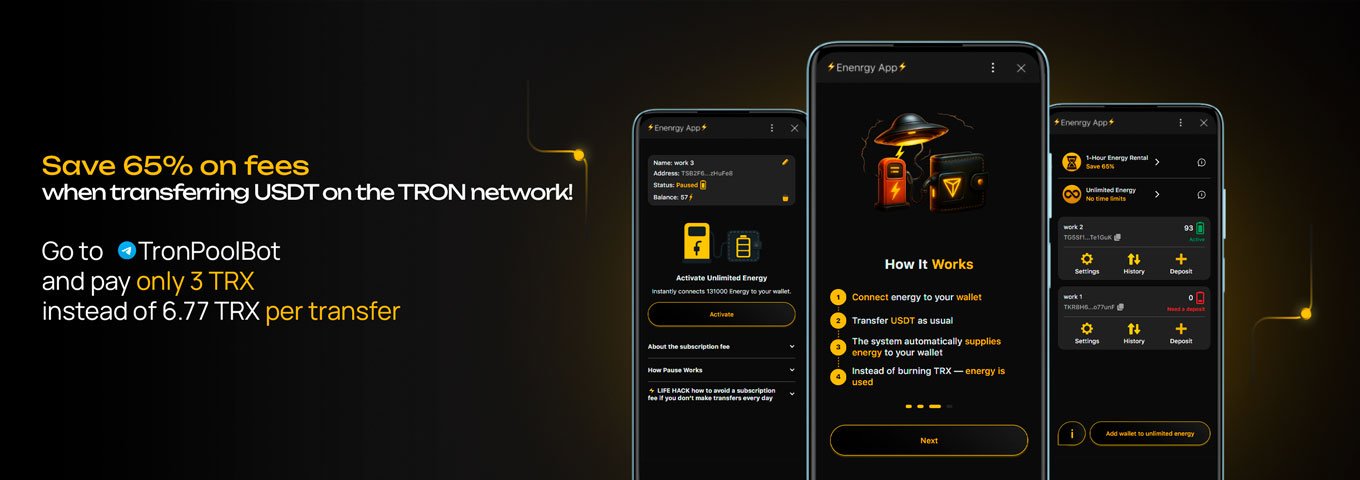
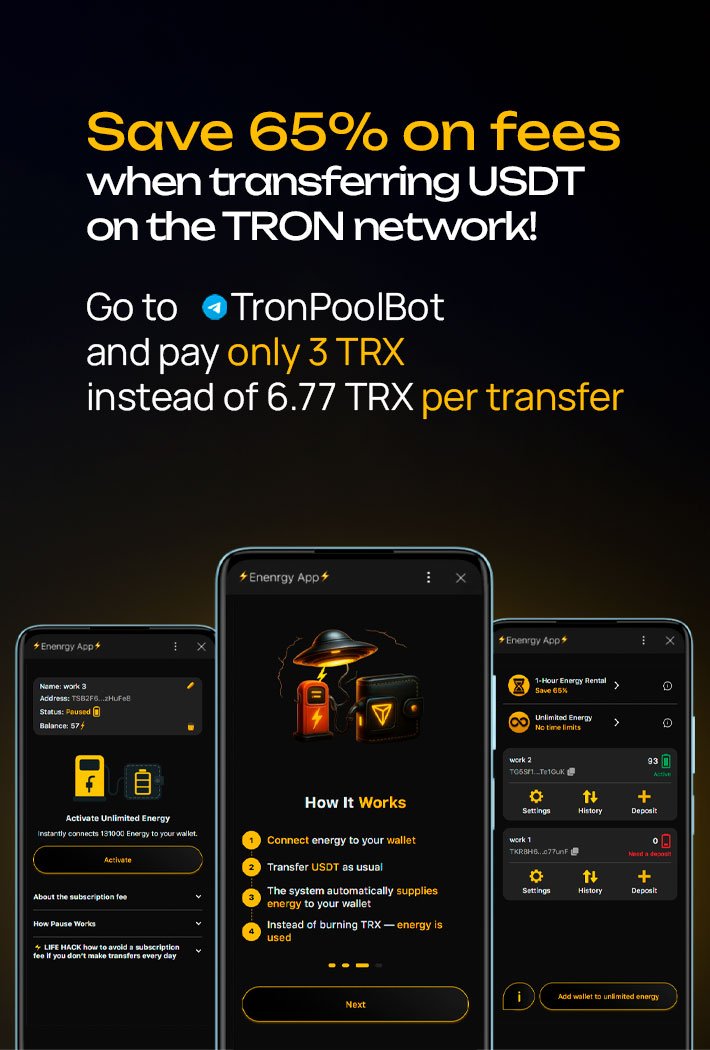
Energy is needed to avoid burning TRX on every transaction. Without energy, each USDT TRC-20 transfer is paid in TRX. When energy is connected, the fee is covered by network resources and the transfer becomes cheaper by 65%. TRON energy can be obtained through the Tron Pool Energy service.
Best Trust Wallet Alternatives: Top 8 Wallets for USDT TRC-20
8 reliable alternatives to Trust Wallet for USDT TRC-20: full TRON support, seed phrase import, energy management and minimal fees for USDT transfers.
2025-12-02
129

Exchange account freeze: causes and solutions
We explain why crypto exchanges block accounts, what AML triggers fire, common user mistakes, and how to communicate with support to restore access.
2025-11-26
144

How to Spot Market Moves Like an Insider: Top 3 Must-Have Tools for Crypto Traders
Three services that give traders an insider’s edge: Lookonchain, Whale Alert, and TRON Pool Energy. Whale tracking, market monitoring, and fee savings.
2025-09-16
115