Cómo usar imToken Wallet para USDT TRC-20: dónde activar TRON, cómo recibir y enviar transferencias y de dónde provienen las comisiones y TRX.
Contenido
ImToken Wallet muchos lo conocen como un monedero multichain, pero al trabajar con TRON tiene sus propias particularidades que permiten ahorrar en comisiones y no quemar TRX de más. La transferencia de USDT TRC-20 a nivel de blockchain funciona de la misma manera en cualquier monedero, pero la forma en que imToken muestra los recursos de la red y ayuda a gestionar la Energy influye mucho en la comodidad y en el coste final de cada transacción.
En esta guía entenderás:
cómo imToken muestra Energy y Bandwidth;
cómo recibir y enviar USDT TRC-20 paso a paso;
cómo usar el navegador DApp en imToken para el alquiler de Energy y la reducción de gastos en TRX.
El material sigue siendo práctico, sin teoría innecesaria, y está enfocado solo en el uso de USDT TRC-20 en la red TRON.
Antes de enviar o recibir USDT TRC-20, debes asegurarte de que en el monedero esté activada la red TRON y se haya añadido el token USDT correcto. Si lo haces una vez y no confundes redes, el trabajo posterior se convierte en un сценарий diario sencillo y claro.
Añadir la red TRON
Primero debes asegurarte de que la propia red TRON esté activada en el monedero. Si ya la elegiste durante la configuración inicial, puedes omitir este paso.
Si la red no está añadida:
abre la sección «Mi perfil»;
entra en «Gestionar monederos»;
selecciona «Añadir cuentas al monedero»;
en el bloque «Layer 1» busca y marca «Tron».
Después de esto, TRON aparecerá en la lista de redes y, junto con ella, una cuenta base con una dirección que empieza con la letra T.
Añadir el token USDT
Cuando la red TRON esté activa, puedes añadir el propio token USDT TRC-20 a la lista de activos:
en la pestaña « Cartera» pulsa el icono «plus» a la derecha del título « Token»;
en el campo de búsqueda «Input token name» introduce USDT;
mira las etiquetas bajo los resultados y elige la opción que abajo indique «TRON» o «TRC20».
Así añadirás exactamente USDT TRC-20, y no un token en otra red.
Cómo asegurarte de que es el token correcto
Después de añadirlo, comprueba algunos detalles:
en la lista de activos, bajo el nombre «USDT» aparecerá la etiqueta «TRON»;
al pulsar el botón « Recibir » verás una dirección que empieza con la letra T;
en la ficha del token, la red también estará indicada como TRON o TRC20.
Si al menos uno de estos puntos no coincide, es mejor volver a comprobar los ajustes y no aceptar en esta dirección transferencias desde la red TRON.
Depósito de USDT TRC-20: cómo recibir una transferencia
Para recibir USDT TRC-20 en el monedero imToken, basta con guardar una vez la dirección correcta y aprender a comprobar la red del remitente. Luego todo se reduce a unos pocos pasos sencillos.
El escenario básico es el siguiente:
en la pantalla principal pulsa el botón «Receive»;
en la lista selecciona USDT con la etiqueta TRON;
en la pantalla aparecerá un código QR y la dirección completa que empieza con T.
Esta dirección se puede copiar, enviar al remitente o mostrar como código QR. Es fundamental acordar de antemano que la transferencia debe realizarse por la red TRON TRC-20. Si el remitente elige la red Ethereum u otra red, y la dirección es de TRON, los fondos con alta probabilidad se perderán de forma irreversible.
Todas las operaciones entrantes se muestran en la pestaña Activity en la pantalla principal. Si pulsas una transacción concreta, puedes copiar su hash TxID y abrir esta operación en el explorador TronScan. Es cómodo hacerlo a través del navegador DApp integrado dentro de imToken.
Envío de USDT TRC-20: análisis completo de la mecánica
Antes de enviar USDT TRC-20 en imToken, es importante entender no solo a dónde y cuánto envías, sino también qué ocurre en la pantalla de confirmación de la transacción. Ahí es donde se ve claramente cuánto pagarás de comisión y con qué recursos.
El proceso paso a paso es el siguiente:
en la pantalla principal pulsa «Transfer»;
selecciona en la lista de activos USDT con la etiqueta TRON;
pega o escanea la dirección del destinatario y comprueba que empieza con T;
indica la cantidad de USDT a enviar.
Después de esto, imToken mostrará la pantalla de confirmación. En esta pantalla обязательно revisa la sección de comisión Transaction fee. Ahí se indicará el consumo estimado de Energy y Bandwidth, así como cuánto TRX se deducirá del saldo si falta Energy. Si el importe en TRX parece inesperadamente alto, tiene sentido detenerse y pasar a la sección sobre el alquiler de Energy para no quemar monedas de más.
Comisiones en TRON: cuánto cuesta una transferencia de USDT en imToken
Para no sorprenderte con las cifras en la línea de comisión, es útil entender primero cómo funciona la transferencia de USDT TRC-20 en la red TRON y qué recursos participan. Después de eso, la interfaz de imToken se percibe mucho más clara y queda claro por qué estás pagando.
Cómo funciona la operación de transferencia de USDT a nivel de TRON
USDT TRC-20 existe en la red TRON como un contrato inteligente. Cualquier transferencia significa llamar a este contrato. Para ejecutar esa llamada, la red consume recursos:
Si no hay suficiente Energy, el nodo de la red lo compensa mediante la quema de TRX, por eso ves el descuento de monedas incluso con una transferencia pequeña. Al mismo tiempo, el importe de la transferencia no afecta al coste de la operación. Una transferencia de 10 USDT y una transferencia de 10 000 USDT en las mismas condiciones consumen el mismo volumen de recursos.
El factor principal de la comisión: si el destinatario ya tiene USDT
Lo que más influye en la comisión es si el destinatario ya tiene el token USDT TRC-20 en esa dirección:
si USDT ya está, la operación обычно requiere alrededor de 65 000 de Energy, y con un saldo de Energy en cero esto significa aproximadamente 6,77 TRX, que se quemarán al pagar la comisión;
si no hay USDT en la dirección, la red considera la operación más pesada y requerirá aproximadamente 131 000 de Energy o alrededor de 13,37 TRX.
Las cifras pueden variar ligeramente según la carga de la red, pero el principio sigue siendo el mismo. La primera transferencia es más cara, las transferencias repetidas son más baratas.
Cómo se ve la comisión en la interfaz de imToken
imToken muestra de forma cómoda qué ocurrirá al enviar. En la pantalla de confirmación verás:
cuánta Energy se requiere para la operación;
cuánta Energy ya hay en el monedero;
cuánta TRX se quemará adicionalmente si no hay suficiente Energy.
La ventaja del monedero cripto imToken es que lee correctamente tu saldo de recursos desde la blockchain y muestra valores reales. Esto ayuda a entender de antemano si conviene enviar la transacción ahora o si es mejor alquilar Energy primero.
Cómo comprar TRX en imToken si no alcanza para la comisión
A veces TRX se termina en el peor momento, y necesitas transferir USDT aquí y ahora. En estas situaciones, puedes usar los métodos integrados para comprar TRX directamente dentro de imToken, aunque para importes pequeños no siempre son rentables.
Si necesitas TRX con urgencia, el monedero ofrece dos opciones de recarga.
Opción con fiat:
pulsa el botón «Buy»;
elige una de las pasarelas, por ejemplo MoonPay u OpenC;
indica el importe necesario y completa el pago.
Estos servicios requieren pasar KYC y funcionan con límites mínimos bastante altos. La compra mínima обычно empieza a partir de veinte dólares o más. Para comprar dos o cuatro dólares en TRX, es demasiado caro.
Opción con swap:
pulsa «Trade»;
elige el token que ya tengas en el saldo;
cámbialo a TRX mediante el agregador integrado.
Este método también tiene una restricción de importe mínimo. Los swaps en el agregador suelen estar disponibles a partir de unos quince dólares y se usan con más frecuencia para intercambios más grandes.
Por eso, para importes pequeños que solo se necesitan para pagar comisiones, las opciones integradas de compra suelen ser poco rentables. En ese caso, es más razonable considerar el alquiler de Energy.
Alternativa a TRX: alquiler de Energy en imToken
Cuando las transferencias de USDT TRC-20 se vuelven regulares, la quema constante de TRX deja de parecer razonable. Es mucho más выгодно configurar el alquiler de Energy una vez y luego pagar mucho menos por el recurso de la red. imToken permite hacerlo de diferentes maneras, por lo que es importante entender en qué se diferencian y cuál es más conveniente para ti.
Método 1. Alquiler a través del navegador DApp
Esta opción es adecuada para quienes ya están algo familiarizados con DeFi y no temen las interfaces de las plataformas DApp. En imToken Wallet basta con abrir el menú inferior, ir a la pestaña « Explorar» y usar el navegador DApp integrado.
Luego la secuencia de acciones es la siguiente:
en la barra de búsqueda introduce la dirección del servicio de alquiler, por ejemplo feee.io, Justlend o Tronify;
abre el sitio y conecta el monedero a la DApp;
selecciona el volumen necesario de Energy y el plazo, paga el alquiler y espera la acreditación del recurso.
Este enfoque da un control total sobre todos los parámetros, pero está asociado a ряд de dificultades que conviene recordar de antemano:
la interfaz de muchas DApp está sobrecargada con tablas y cifras, por lo que los principiantes tendrán que dedicar tiempo a entender botones y pestañas;
algunas plataformas, como Justlend, pueden exigir un depósito en TRX, por ejemplo 20 TRX, que se devuelve, pero queda bloqueado durante el alquiler;
además del precio base del alquiler, a veces se añaden comisiones adicionales de la propia plataforma;
las condiciones suelen estar ligadas a intervalos rígidos, de 10 minutos a 1 hora, que no siempre coinciden con tus necesidades;
el coste del alquiler en TRX o USDT puede cambiar a lo largo del día, porque depende de la carga de la red y de la demanda del recurso.
Al final, el método a través del navegador DApp ofrece más flexibilidad, pero requiere atención y al menos una experiencia mínima con servicios Web3.
Método 2. Alquiler a través de Tron Pool Energy en imToken
Si no quieres lidiar con interfaces complejas de plataformas DApp, es más cómodo usar un servicio отдельный de alquiler de energía como Tron Pool Energy. Funciona a través de un sitio web y un bot de Telegram, por lo que se puede “hacer amigo” con imToken en un par de minutos.
El algoritmo en términos generales es el siguiente:
realizar el pago según las instrucciones, dependiendo del servicio elegido;
esperar unos segundos y comprobar en imToken que la energía apareció y que la comisión en TRX en la pantalla de envío bajó de forma notable.
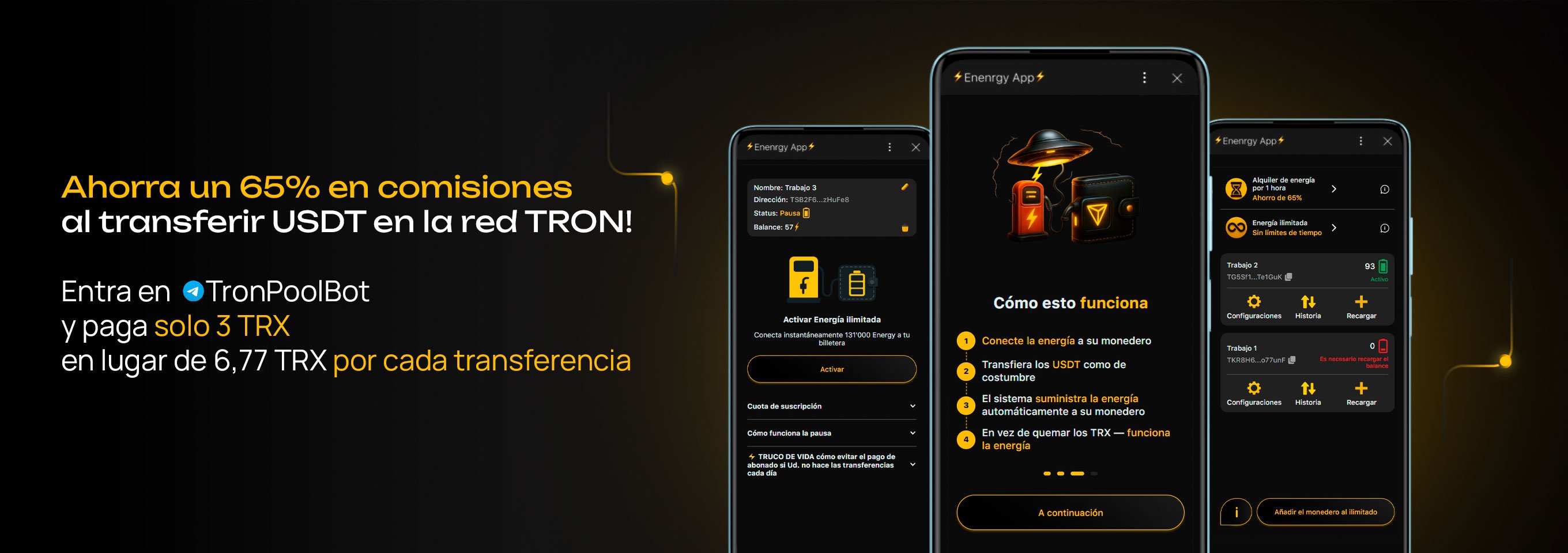
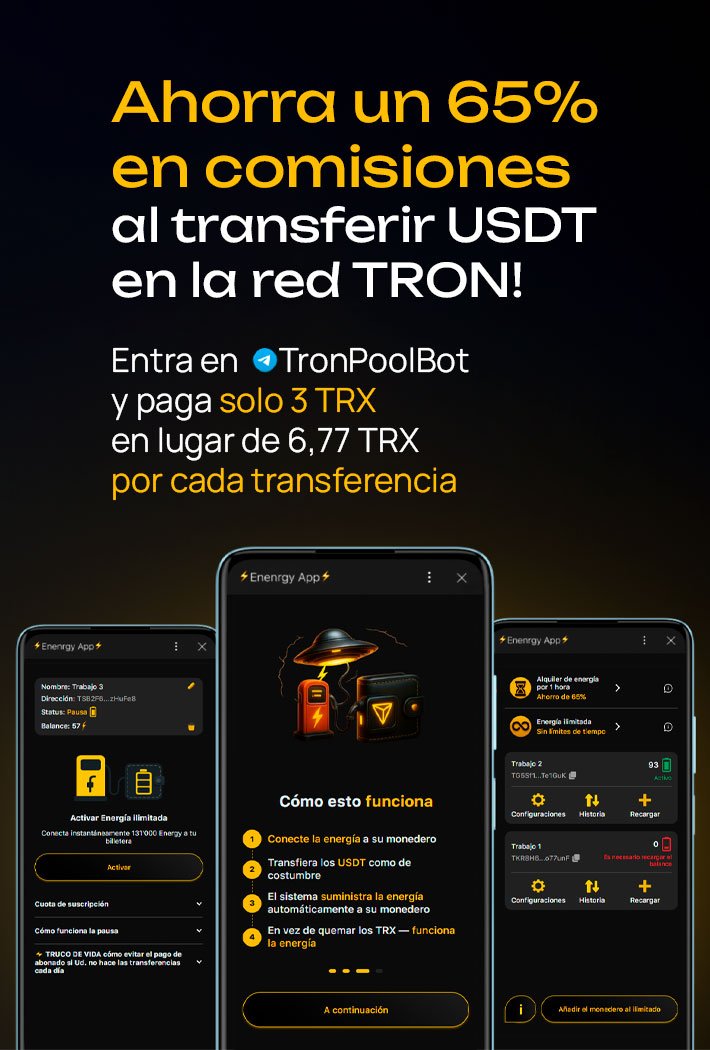
Ahorra hasta un 65% con Tron Pool Energy: conexión segura mediante dirección pública, hasta 30 monederos por cuenta, activación instantánea de energía y compatibilidad total con monederos no custodiales.
Este enfoque es cómodo porque no necesitas conectarte a una DApp dentro del monedero ni entender depósitos o tablas complejas. Todo el proceso se reduce a un escenario simple de pago del servicio mediante una factura clara.
Este método tiene varios плюсы evidentes:
no es necesario abrir sitios en el navegador DApp ni entender interfaces DeFi;
no se necesita depósito en TRX, ya que todo se paga en TRX o USDT y no se bloquea nada del lado de los contratos inteligentes;
la interfaz del bot de Telegram está organizada en forma de pasos cortos y botones, lo que es notablemente más fácil para un principiante;
el coste de los paquetes de energía es conocido de antemano, por lo que es fácil estimar cuánto pagas por una o varias transacciones.
Como resultado, el usuario de imToken recibe energía en su dirección TRON y puede enviar USDT TRC-20 con gastos mínimos, sin quemar TRX extra cada vez y sin perder tiempo en plataformas DeFi complejas.
Comparación de precios para la compra de Energy en la red TRON
Servicio
Energy (Energy)
Plazo
Coste
Pago estándar en TRX
65 000
única vez
≈6,77 TRX
Pago estándar en TRX
131 000
única vez
≈13,37 TRX
feee.io
64 400
10 minutos
4,746 TRX
Tronify
65 000 + 1 TRX
depende del plan
3,36 $
JustLend
100 000
1 hora
depende del mercado
JustLend
131 000
1 hora
6,02 $ + 0,2 $ fee + 20 TRX depósito
Tron Pool Energy
65 000
1 hora
3 TRX
Tron Pool Energy
131 000
1 hora
6 TRX
Conclusión
Si usas activamente USDT TRC-20, imToken parece una de las opciones más cómodas para trabajar en la red TRON. El monedero muestra de forma honesta el saldo actual de Energy y Bandwidth, ayuda a notar a tiempo que los recursos están por agotarse y permite elegir entre un escenario avanzado mediante el navegador DApp y una conexión más sencilla a servicios especializados de alquiler.
Cuando, en lugar de quemar TRX en cada transacción, alquilas Energy a través de plataformas como Tron Pool Energy, los gastos totales en comisiones en la red TRON a menudo se reducen hasta 65%. En conjunto con una interfaz clara y una visualización correcta de los recursos, esto hace que la combinación de imToken y USDT TRC-20 sea una herramienta práctica para transferencias diarias y el uso regular de la stablecoin.
Compartir
Enlace
¿Te gustó el artículo?
FAQ
¿Dónde se activa la red TRON en imToken?
La red TRON se activa en los ajustes del monedero a través de la gestión de cuentas. Tras la activación aparece una dirección TRON que empieza con la letra T y se utiliza para TRX y USDT TRC-20.
¿Cómo entender que estoy usando exactamente USDT TRC-20 y no otra red?
USDT TRC-20 siempre está vinculado a la red TRON. En imToken esto se muestra con la etiqueta TRON o TRC20 junto al token, y la dirección para recibir empieza con T.
¿Cómo recibir la primera transferencia de USDT en imToken?
Debes abrir el token USDT TRC-20, pulsar «Receive» y enviar al remitente tu dirección TRON. El remitente debe seleccionar la red TRON TRC-20, de lo contrario la transferencia no llegará.
¿Dónde ver el historial de transferencias y el estado de la transacción en el monedero imToken?
Todas las operaciones se muestran en la pestaña Activity. Desde ahí puedes abrir una transacción, copiar el TxID y ver su estado en la blockchain de TRON mediante el explorador.
¿Se pueden reducir los gastos en transferencias de USDT en imToken?
Sí. En lugar de gastar TRX en comisión cada vez, puedes activar el alquiler de Energy a través del servicio Tron Pool Energy. En este caso, la Energy se acredita directamente en tu dirección TRON, y las transferencias de USDT TRC-20 en imToken se realizan con costes mínimos. El servicio funciona sin conectar una DApp, sin KYC y es adecuado tanto para transferencias puntuales como para el uso regular.
Calculadora TRX
¡Descubre cuánto gastas en comisiones!
Ingrese la dirección de su billetera de criptomonedas y calcularemos cuánto TRX ha gastado en tarifas durante los últimos 30 días.
8 alternativas confiables a Trust Wallet para USDT TRC-20: soporte completo de TRON, importación de frase semilla, energía TRON y comisiones mínimas en transferencias USDT.
¿Quieres mantener tu privacidad al usar USDT TRC-20? Te contamos cómo la blockchain de TRON revela tus movimientos, dónde pierdes el anonimato y cómo usar energía sin verificación ni comprar TRX.
Tres servicios que dan ventaja a los traders: Lookonchain, Whale Alert y TRON Pool Energy. Seguimiento de ballenas, monitoreo de operaciones y ahorro en comisiones.




 English (EN)
 Русский (RU)
 Українська (UK)
 español (ES)
 Türkçe (TR)