 English (EN)
 Русский (RU)
 Українська (UK)
 español (ES)
 Türkçe (TR)


Trust Wallet yerine ne kullanılır: USDT TRC-20 için en iyi 8 cüzdan
USDT TRC-20 için Trust Wallet’a 8 güvenilir alternatif: tam TRON desteği, seed phrase aktarımı, enerji yönetimi ve minimum USDT transfer ücretleri.
2025-12-02
129



Destek
Yetkilendirme yalnızca hizmeti kullanmak için gereklidir «Tron Enerji Kasası»
Kayıt sırasında sağladığınız e-mail adresini girin, size şifrenizi nasıl sıfırlayacağınızla ilgili talimatları göndereceğiz.
İstek işlenirken bir hata oluştu. Lütfen daha sonra tekrar deneyin. Sorun devam ederse, destek hizmetiyle iletişime geçin.
USDT TRC-20 için imToken Wallet nasıl kullanılır: TRON nerede etkinleştirilir, transferler nasıl alınır ve gönderilir, komisyonlar ve TRX nereden gelir.
ImToken Wallet birçok kişi tarafından çok zincirli bir cüzdan olarak bilinir, ancak TRON ağıyla çalışırken komisyonlardan tasarruf etmeyi ve gereksiz TRX yakımını önlemeyi sağlayan bazı özel özelliklere sahiptir. USDT TRC-20 transferi blok zinciri seviyesinde tüm cüzdanlar için aynı şekilde çalışır, ancak imToken’ın ağ kaynaklarını nasıl gösterdiği ve Energy yönetimine nasıl yardımcı olduğu, her işlemin kullanım kolaylığını ve nihai maliyetini doğrudan etkiler.
Bu rehberde şunları öğreneceksiniz:
Bu içerik pratiktir, gereksiz teori içermez ve yalnızca TRON ağında USDT TRC-20 kullanımı üzerine odaklanır.
Özellikler, güvenlik, erişim kurtarma ve arayüz hakkında genel bilgi için “imToken İncelemesi: DApp tarayıcılı ve kendi kripto kartına sahip çok zincirli cüzdan” başlıklı makaleye bakabilirsiniz.
USDT TRC-20 göndermeden veya almadan önce, cüzdanda TRON ağının etkinleştirildiğinden ve doğru USDT token’ının eklendiğinden emin olmak gerekir. Bu işlem bir kez doğru yapıldığında ve ağlar karıştırılmadığında, kullanım basit ve anlaşılır bir günlük senaryoya dönüşür.
Öncelikle cüzdanda TRON ağının etkin olduğundan emin olun. İlk kurulum sırasında zaten seçtiyseniz bu adımı atlayabilirsiniz.
Ağ ekli değilse:
Bundan sonra ağlar listesinde TRON görünecek ve T harfiyle başlayan bir adresi olan temel bir hesap eklenecektir.
TRON ağı etkinleştirildikten sonra USDT TRC-20 token’ını varlık listesine ekleyebilirsiniz:
Bu şekilde başka bir ağdaki token değil, tam olarak USDT TRC-20 eklenmiş olur.
Doğru token olduğunu nasıl kontrol edersiniz
Ekledikten sonra şu noktaları kontrol edin:
Bu maddelerden biri bile uyuşmuyorsa, ayarları tekrar kontrol etmek ve bu adrese TRON ağından transfer kabul etmemek daha güvenlidir.
imToken cüzdanına USDT TRC-20 almak için doğru adresi bir kez kaydetmek ve gönderenin ağını kontrol etmeyi öğrenmek yeterlidir. Sonrasında işlem birkaç basit adıma indirgenir.
Temel senaryo şu şekildedir:
Bu adres kopyalanabilir, gönderene iletilebilir veya QR kodu olarak gösterilebilir. Transferin TRON TRC-20 ağı üzerinden yapılacağını önceden netleştirmek kritik öneme sahiptir. Gönderen Ethereum ya da başka bir ağ seçerse ve adres TRON ağına aitse, fonlar büyük olasılıkla geri alınamaz şekilde kaybolur.
Tüm gelen işlemler ana ekrandaki Aktivite sekmesinde görünür. Belirli bir işleme dokunarak TxID kopyalanabilir ve imToken içindeki DApp tarayıcısı aracılığıyla TronScan üzerinde görüntülenebilir.
imToken’da USDT TRC-20 göndermeden önce yalnızca nereye ve ne kadar gönderdiğinizi değil, aynı zamanda işlem onay ekranında neler olduğunu da anlamak önemlidir. Komisyon tutarı ve hangi kaynakların kullanıldığı tam olarak burada görülür.
Adım adım süreç şöyledir:
Bundan sonra imToken onay ekranını gösterir. Bu ekranda Transaction fee bölümünü mutlaka inceleyin. Burada tahmini Energy ve Bandwidth tüketimi ile Energy yetersizse bakiyeden ne kadar TRX düşüleceği belirtilir. TRX tutarı beklenenden yüksek görünüyorsa, durup Energy kiralama bölümüne geçmek ve gereksiz token yakımından kaçınmak mantıklıdır.
Komisyon satırındaki rakamlara şaşırmamak için önce TRON ağında USDT TRC-20 transferinin nasıl çalıştığını ve hangi kaynakların kullanıldığını anlamak faydalıdır. Bu sayede imToken arayüzü çok daha anlaşılır hale gelir ve ne için ödeme yaptığınız netleşir.
USDT TRC-20, TRON ağında bir akıllı sözleşme olarak çalışır. Her transfer bu sözleşmenin çağrılması anlamına gelir. Bu çağrıyı gerçekleştirmek için ağ şu kaynakları tüketir:
Yeterli Energy yoksa, ağ düğümü bunu TRX yakımıyla telafi eder. Bu nedenle küçük bir transferde bile bakiyeden TRX düşüldüğünü görebilirsiniz. Transfer tutarının büyüklüğü maliyeti etkilemez. Aynı koşullarda 10 USDT ve 10 000 USDT transferi aynı miktarda kaynak tüketir.
Komisyonu en çok etkileyen unsur, alıcının bu adreste daha önce USDT TRC-20 bulundurup bulundurmadığıdır:
Rakamlar ağ yüküne bağlı olarak biraz değişebilir, ancak prensip aynıdır. İlk transfer daha pahalıdır, sonraki transferler daha ucuzdur.
imToken arayüzünde komisyon nasıl görünür
imToken, gönderim sırasında ne olacağını açıkça gösterir. Onay ekranında şunları görürsünüz:
imToken’ın avantajı, kaynak bakiyenizi doğrudan blok zincirinden doğru şekilde okuyup gerçek değerleri göstermesidir. Bu da işlemi hemen mi göndermek yoksa önce Energy kiralamak mı gerektiğine karar vermeyi kolaylaştırır.
Bazen TRX en olmadık anda biter ve USDT’yi hemen göndermek gerekir. Bu durumlarda imToken içindeki yerleşik TRX satın alma yöntemleri kullanılabilir, ancak küçük tutarlar için her zaman avantajlı değildir.
Acil TRX gerektiğinde cüzdanda iki seçenek bulunur.
Fiat ile satın alma:
Bu servisler KYC gerektirir ve genellikle yüksek minimum limitlerle çalışır. Asgari satın alma tutarı çoğu zaman yirmi dolar veya daha fazladır. TRX’te iki veya dört dolar almak için bu yöntem pahalıdır.
Takasa dayalı seçenek:
Bu yöntemin de minimum tutar sınırı vardır. Takaslar genellikle yaklaşık on beş dolardan itibaren kullanılabilir ve daha büyük işlemler için tercih edilir.
Bu nedenle, yalnızca komisyon ödemek için gereken küçük tutarlar söz konusuysa, yerleşik satın alma seçenekleri çoğu zaman verimli değildir. Bu durumda Energy kiralama daha mantıklıdır.
USDT TRC-20 transferleri düzenli hale geldiğinde, sürekli TRX yakmak mantıklı olmaktan çıkar. Energy kiralamayı bir kez ayarlamak ve ağ kaynağı için çok daha az ödemek çok daha verimlidir. imToken bunu farklı yollarla yapmaya olanak tanır; bu yüzden aralarındaki farkları ve hangisinin sizin için daha uygun olduğunu anlamak önemlidir.
Bu yöntem, DeFi’ye aşina olan ve DApp platformlarının arayüzlerinden çekinmeyen kullanıcılar için uygundur. imToken Wallet’ta alt menüyü açıp Explore sekmesine geçerek yerleşik DApp tarayıcısını kullanmak yeterlidir.
İzlenecek adımlar şunlardır:
Bu yaklaşım tüm parametreler üzerinde tam kontrol sağlar, ancak bazı zorlukları da vardır:
Sonuç olarak, DApp tarayıcısı üzerinden yapılan yöntem daha fazla esneklik sunar, ancak dikkat ve en azından temel Web3 deneyimi gerektirir.
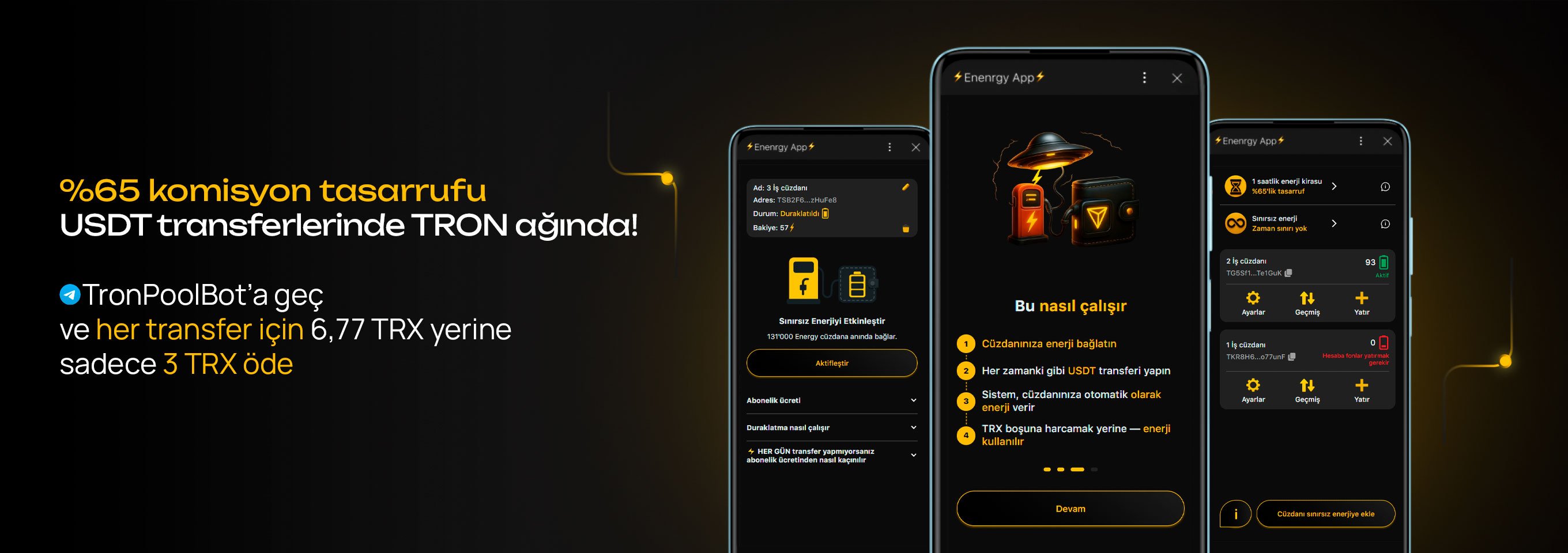
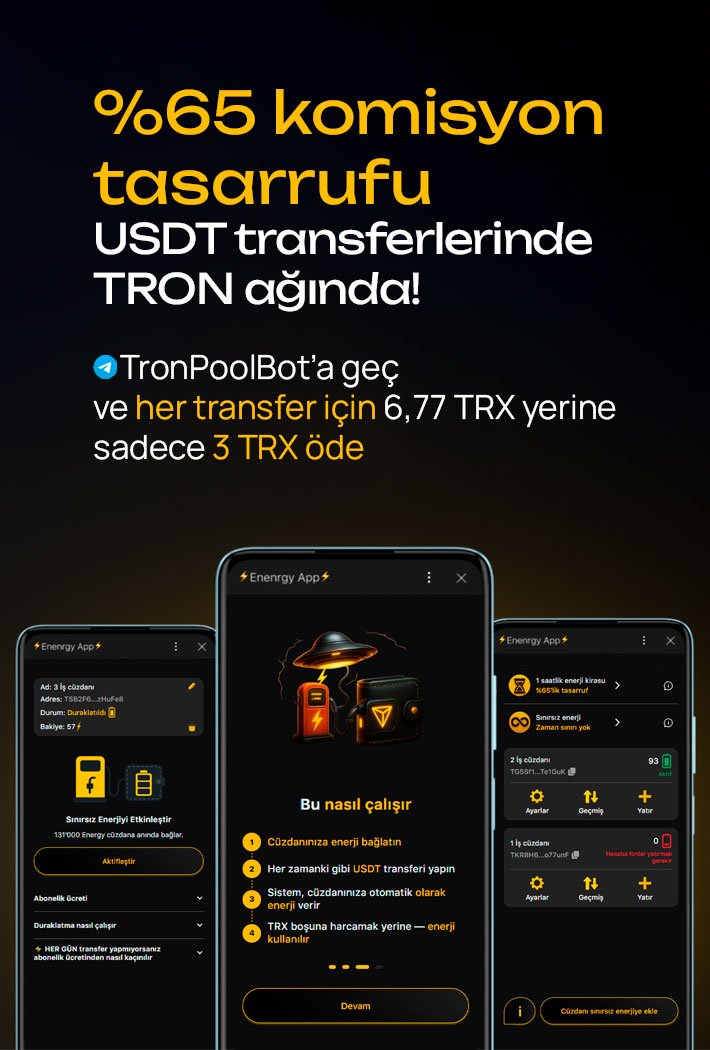
DApp platformlarının karmaşık arayüzleriyle uğraşmak istemiyorsanız, Tron Pool Energy gibi özel bir Energy kiralama servisini kullanmak daha pratiktir. Bu servis web sitesi ve Telegram botu üzerinden çalışır, bu nedenle imToken ile entegrasyonu birkaç dakika sürer.
Genel algoritma şu şekildedir:
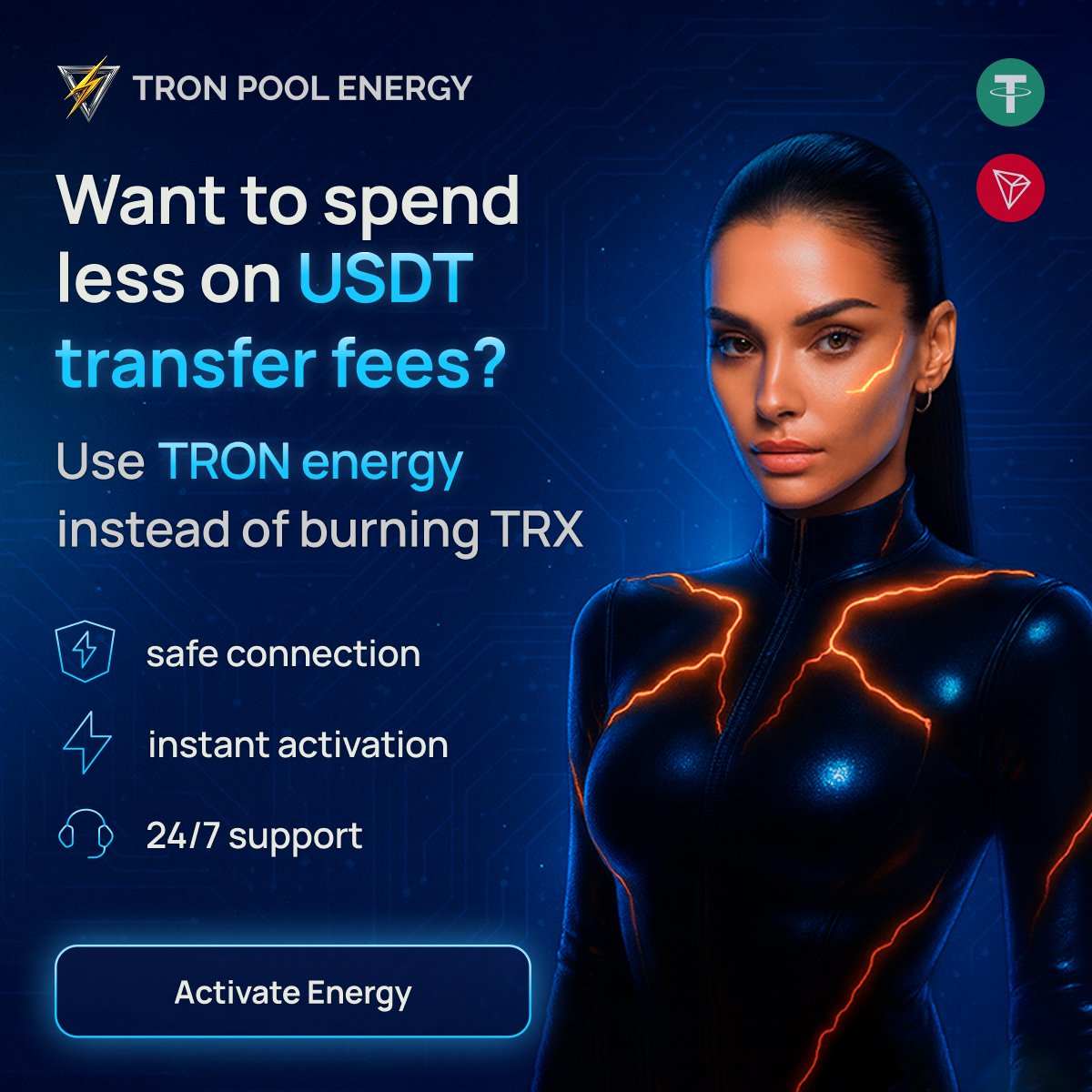
Bu yöntem, cüzdan içinde DApp bağlantısı kurmayı ve depozito ya da karmaşık tablolarla uğraşmayı gerektirmez. Tüm süreç, anlaşılır bir fatura üzerinden basit bir ödeme senaryosuna indirgenir.
Bu yöntemin belirgin avantajları:
Sonuç olarak imToken kullanıcısı, TRON adresine Energy alır ve USDT TRC-20 transferlerini minimum maliyetle gerçekleştirebilir; her seferinde gereksiz TRX yakmadan ve karmaşık DeFi platformlarında zaman kaybetmeden.
| Servis | Energy | Süre | Maliyet |
|---|---|---|---|
| Standart TRX ödemesi | 65 000 | tek seferlik | ≈6,77 TRX |
| Standart TRX ödemesi | 131 000 | tek seferlik | ≈13,37 TRX |
| feee.io | 64 400 | 10 dakika | 4,746 TRX |
| Tronify | 65 000 + 1 TRX | plana bağlı | 3,36 $ |
| JustLend | 100 000 | 1 saat | piyasa koşullarına bağlı |
| JustLend | 131 000 | 1 saat | 6,02 $ + 0,2 $ fee + 20 TRX depozito |
| Tron Pool Energy | 65 000 | 1 saat | 3 TRX |
| Tron Pool Energy | 131 000 | 1 saat | 6 TRX |
USDT TRC-20’yi aktif olarak kullanıyorsanız, imToken TRON ağıyla çalışmak için en kullanışlı seçeneklerden biridir. Cüzdan, mevcut Energy ve Bandwidth bakiyesini açıkça gösterir, kaynakların azaldığını zamanında fark etmenizi sağlar ve DApp tarayıcısı üzerinden gelişmiş bir senaryo ile özel kiralama servislerine daha basit bir bağlantı arasında seçim sunar.
Her işlemde TRX yakmak yerine Tron Pool Energy gibi platformlar üzerinden Energy kiraladığınızda, TRON ağındaki toplam komisyon maliyetleri çoğu zaman 65%’e kadar düşer. Anlaşılır arayüz ve kaynakların doğru gösterimiyle birlikte bu durum, imToken ve USDT TRC-20 kombinasyonunu günlük transferler ve stablecoin ile düzenli kullanım için pratik bir çalışma aracına dönüştürür.
TRON ağı, cüzdan ayarlarında hesap yönetimi üzerinden etkinleştirilir. Aktivasyondan sonra T harfiyle başlayan bir TRON adresi görünür ve bu adres hem TRX hem de USDT TRC-20 için kullanılır.
USDT TRC-20 her zaman TRON ağına bağlıdır. imToken’da token’ın yanında TRON veya TRC20 etiketi görünür ve alma adresi T ile başlar.
USDT TRC-20 token’ını açın, Al butonuna dokunun ve TRON adresinizi gönderene iletin. Gönderenin TRON TRC-20 ağını seçmesi gerekir; aksi halde transfer ulaşmaz.
Tüm işlemler Aktivite sekmesinde gösterilir. Buradan bir işlemi açabilir, TxID’yi kopyalayabilir ve TRON blok zincirinde durumunu kontrol edebilirsiniz.
Evet. Her seferinde komisyon için TRX harcamak yerine Tron Pool Energy servisi üzerinden Energy kiralayabilirsiniz. Bu durumda Energy doğrudan TRON adresinize tanımlanır ve imToken’daki USDT TRC-20 transferleri minimum maliyetle yapılır. Servis DApp bağlantısı gerektirmez, KYC istemez ve hem tek seferlik hem de düzenli kullanım için uygundur.
Trust Wallet yerine ne kullanılır: USDT TRC-20 için en iyi 8 cüzdan
USDT TRC-20 için Trust Wallet’a 8 güvenilir alternatif: tam TRON desteği, seed phrase aktarımı, enerji yönetimi ve minimum USDT transfer ücretleri.
2025-12-02
129

Doğrulama Olmadan USDT: TRON Blokzincirinde Anonimliği Nasıl Korursunuz?
USDT TRC-20 kullanırken gizliliğinizi korumak mı istiyorsunuz? TRON blokzincirinin etkinliklerinizi nasıl ortaya çıkardığını, anonimliği nerede kaybettiğinizi ve doğrulama veya TRX satın almadan enerji nasıl kullanılacağını anlatıyoruz.
2025-07-25
138
Piyasayı Bir Insider Gibi Okumak: Kripto Trader'ları İçin En İyi 3 Faydalı Servis
Traderlara içeriden avantaj sağlayan üç servis: Lookonchain, Whale Alert ve TRON Pool Energy. Balina analizi, işlem takibi ve komisyon tasarrufu.
2025-09-16
115