 English (EN)
 Русский (RU)
 Українська (UK)
 español (ES)
 Türkçe (TR)



How to Send USDT TRC-20 Without TRX: 3 Proven Methods
Got USDT on the TRON network but no TRX to send it? Discover three proven ways to avoid buying TRX — from Tron Gas Free to TRON Energy rental.
2025-07-30
134




Support
Authorization is required only to use the service «Team energy»
Ваш аккаунт заблокирован. За детальной информацией обращайтесь в службу поддержки.
Enter the e-mail you provided during registration and we will send you instructions on how to reset your password.
An error occurred while processing your request. Please try again later. If the problem persists, please contact our support team.
Learn why you need TRX to send USDT on the TRON network, how to buy it via Trust Wallet, and how to save up to 80% on fees using Tron Energy. Step-by-step guide and smart tips.
TRX is the native coin of the TRON network. In the wallet, it is displayed as a separate asset that can be stored, received, and sent.
In the TRON network, TRX is also used to pay network fees if the address lacks Energy and Bandwidth. If coins are needed specifically to send USDT, it is useful to understand in advance how much TRX is needed to transfer USDT and what the fee depends on.
TRX can also be used for staking. How to get network resources this way is detailed in the instructions on staking TRX in Trust Wallet.
After this, TRX will appear among the wallet assets. To receive coins, open TRX, tap «Receive» and copy the TRON network address. Before topping up, it is useful to check where to view the wallet address in Trust Wallet and whether the correct network is selected. A TRON address usually starts with the letter T.
In Trust Wallet, TRX can be bought via the «Buy» function, which works with third-party payment providers. Available payment methods, fees, minimum amount, and verification requirements depend on the selected provider and region.
After processing, the coins will arrive at the wallet address. This method is convenient when you need to buy TRX for regular money without previously transferring cryptocurrency to an exchange. Before paying, compare the exchange rate, fees, and final amount among available providers.
If the built-in purchase is unavailable or unsuitable, TRX can be bought on an exchange or another service and withdrawn to your TRON address.
The main ways to get TRX differ by payment method, availability, and costs. Compare them before choosing a route.
| Method | Payment method | When it is suitable | What to check |
|---|---|---|---|
| Purchase in Trust Wallet | Fiat / card / provider method | If you need to buy TRX for regular money | Provider, rate, fee, and regional availability |
| USDT → TRX swap | USDT | If USDT is already in the wallet | USDT network, route, rate, and network costs |
| Tron Pool Energy | USDT TRC-20 | If you need to get TRX for USDT on the TRON network | Limits, TRON network, and sender address |
| Exchange or another service | Depends on the service | If built-in methods don't suit | Purchase and withdrawal fees, TRON network |
If you already have USDT, buying TRX with fiat is not mandatory. First, check if Trust Wallet offers a USDT → TRX exchange route.
The USDT → TRX route may not always be displayed: swap availability depends on the selected network, supported liquidity providers, and the current liquidity of the pair. Before confirming, rely on the actual route and quote shown by Trust Wallet.
The USDT TRC-20 exchange itself is also an operation on the TRON network. If the address lacks network resources and there is no TRX to cover the costs, the operation may fail.
If the built-in swap in Trust Wallet doesn't offer the required swap route, you can exchange USDT TRC-20 for TRX through Tron Pool Energy.
The exchange rate is fixed at the moment USDT is received, and the final amount of TRX already accounts for the service spread. Registration and connecting a wallet to the service are not required.
This option is available on the buy TRX with USDT TRC-20 page. Before sending, make sure you are using the TRON network and observing the limit specified on the page.
Before confirming the operation, check a few things:
If the conditions or final amount differ from expected, do not confirm the operation until you check the selected network and route.
The choice of method depends on what you want to pay with: regular money or already existing USDT. Before the operation, check the TRON network, exchange rate, fees, and receiving address.
Last updated: September 15, 2026
We have updated the Trust Wallet instructions: the information on how to buy TRX, add TRX to your wallet, and swap USDT for TRX has been revised. All steps have been aligned with the latest version of the app.
The reason could be the absence of an available route, a change in the quote, a lack of liquidity, or a shortage of TRON network resources to execute the operation.
Not always. If TRX is already displayed among the assets, nothing needs to be done. If the coin is not on the main screen, find TRX via asset management and enable its display.
Open TRX, tap «Receive», copy your TRON address and specify it when withdrawing from an exchange, another wallet, or service. Before sending, check that the TRON network is selected.
Yes. If a swap is available for the pair, USDT can be exchanged for TRX inside Trust Wallet. For USDT TRC-20, you can also use buying TRX for USDT. Before the operation, check the network, exchange rate, and network costs.
TRX is the native coin of the TRON network, and TRC-20 is the token standard on this network. For example, USDT TRC-20 is USDT on the TRON network, and TRX is a separate cryptocurrency.
No. TRON is a blockchain, and TRX is its native coin. In Trust Wallet, the asset is usually designated as TRX or TRON (TRX).
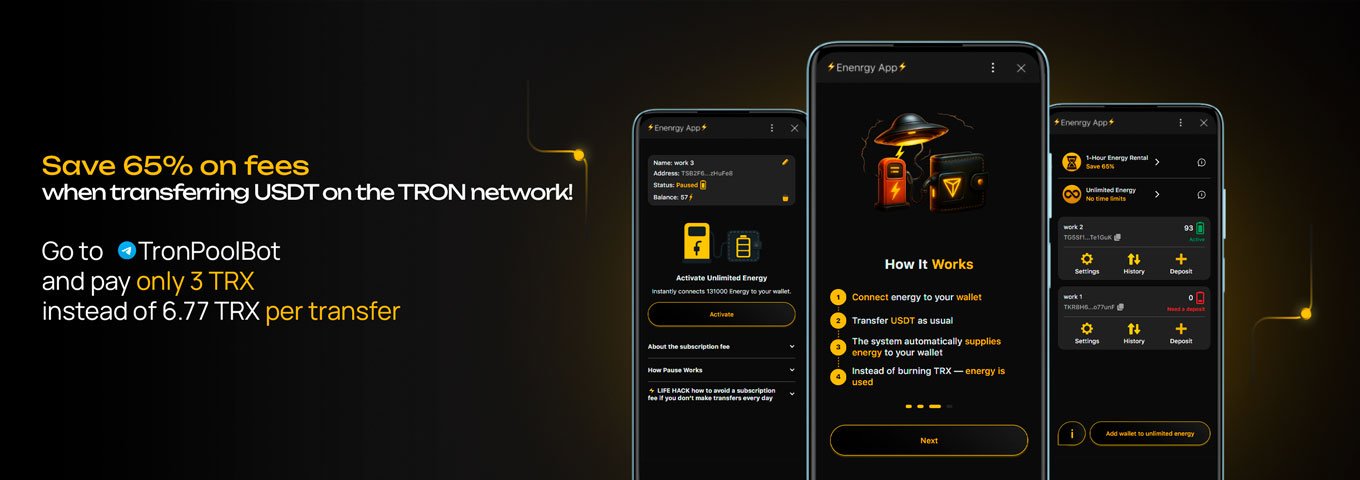
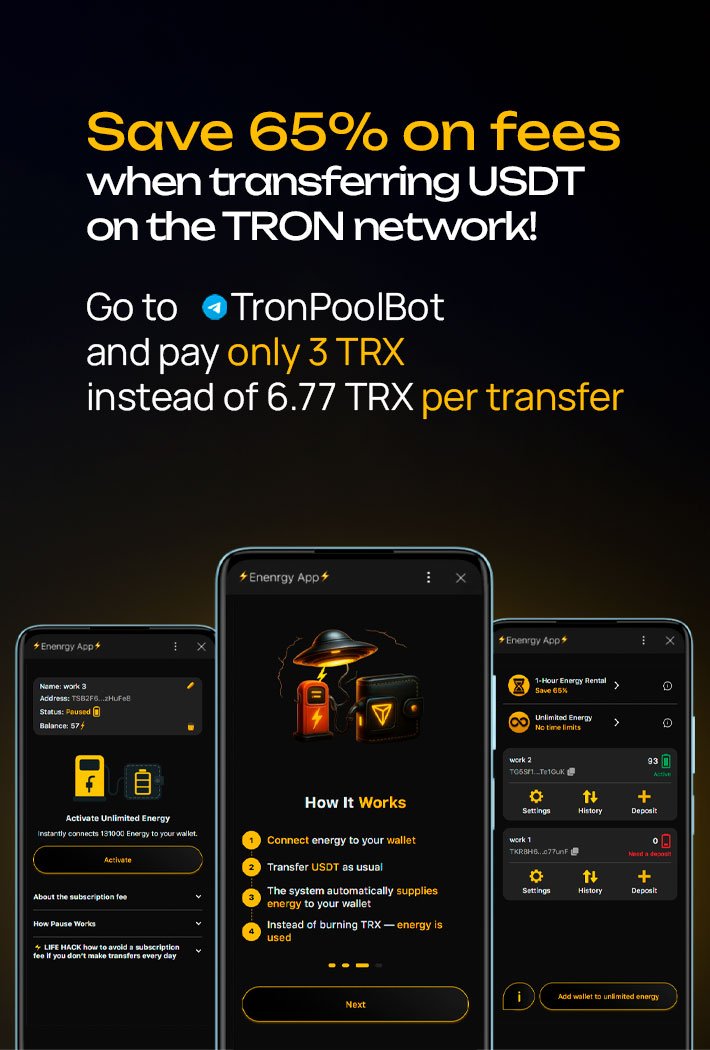
How to Send USDT TRC-20 Without TRX: 3 Proven Methods
Got USDT on the TRON network but no TRX to send it? Discover three proven ways to avoid buying TRX — from Tron Gas Free to TRON Energy rental.
2025-07-30
134

What is Tron, TRX, and TRC-20? Here’s the Difference—Plain and Simple
Understanding the difference between Tron, TRX, and TRC-20: what the TRON network is, why the TRX token matters, and how the TRC-20 standard works for USDT. A simple guide for beginners
2025-08-02
155

Top 3 Tools Experienced Traders Use: Analytics and Cost Reduction
Review of the tools used by pro traders. Learn how to analyze the market deeper and cut fees with three key services.
2025-08-26
187

Reduce USDT TRC-20 transaction fees for frequent transfers from a single wallet with no time limits

Quick activation for one-time and occasional USDT TRC-20 transfers

Fund a shared balance and distribute TRON Energy and Bandwidth across multiple wallets

Automatic TRON Energy delegation for exchanges, swap services, and payment platforms

Quick access to Tron Pool Energy services directly in Telegram

Fast USDT TRC-20 to TRX swap, no exchange or registration required

Get all the benefits of Telegram at up to 15% less than through the App Store and Google Play

Gifts, reactions, and digital content with USDT TRC-20 — no registration required

Get a custom TRON address with your name, brand, or nickname