

 English (EN)
 Русский (RU)
 Українська (UK)
 español (ES)
 Türkçe (TR)
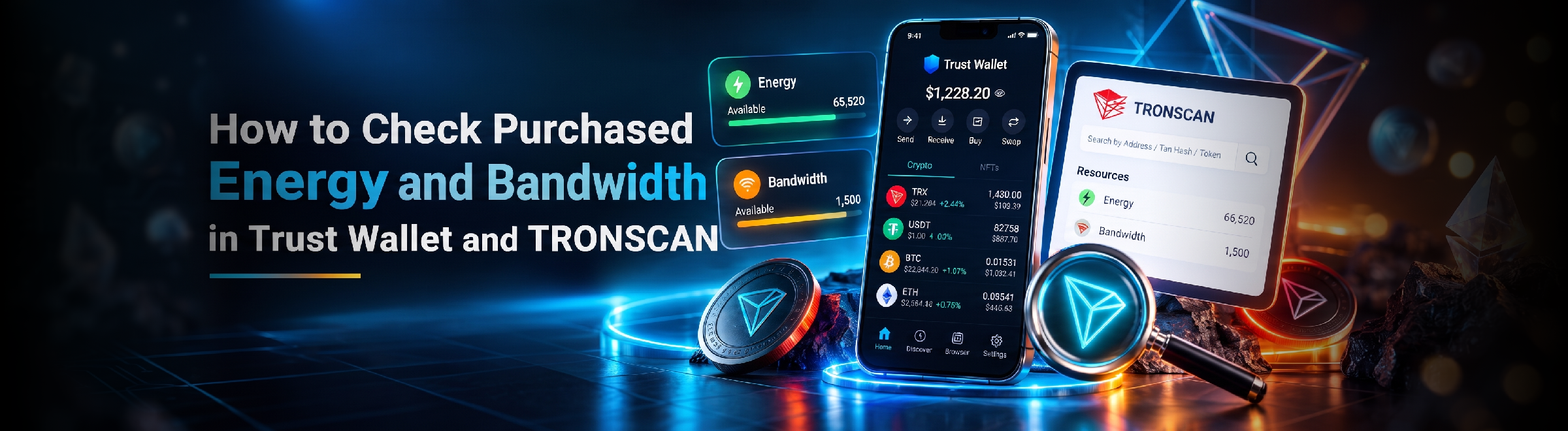

How to Make Sure Energy Has Actually Been Added to Your TRON Address? Check Your Resources in Trust Wallet and TRONSCAN in Just a Few Steps
Purchased or rented TRON Energy and Bandwidth do not appear as TRX or USDT. In Trust Wallet, you can check available resources, while TRONSCAN lets you view them directly for your TRON address and verify delegation.
Energy and Bandwidth are TRON network resources. Once purchased or rented, they become available to the specified address and can be used when executing transactions.
Therefore, Energy does not need to be searched for among regular incoming TRX or USDT transfers.
What Happens to Energy and Bandwidth After Purchase
When you buy or rent Energy and Bandwidth, the resources are provided to your TRON address.
If another address provides them, delegation is used: the resource becomes available to the recipient, but the TRX themselves are not transferred to their wallet.
Consequently, Energy or Bandwidth does not appear in Trust Wallet as a regular incoming cryptocurrency transfer.
Energy is used when executing smart contracts, such as USDT TRC-20 transfers, while Bandwidth is used to transmit transaction data to the network. Read more about how these resources work and how they affect expenses in the article on fees in Trust Wallet.
How to Check Energy and Bandwidth in Trust Wallet
Trust Wallet capabilities allow you to track Energy and Bandwidth available to your TRON address.
To check:
- Open Trust Wallet.
- Select USDT (TRON).
- Find information about Energy and Bandwidth for this address.
- Check the available resource amount.
The location of this data and item names may vary depending on the Trust Wallet version.
For a quick check of the mere existence of resources, this is usually sufficient. If you need to inspect the address state and received delegation in more detail, use TRONSCAN.
Lifehack: Check Energy Beyond Trust Wallet
If you rented Energy or Bandwidth for a TRON address, do not search for them among regular TRX or USDT transfers. These are network resources, not cryptocurrency, so you will not see a separate incoming transaction with "Energy coins".
There is a simple way to make sure the resource is truly connected to your address.
Copy your public TRON address from Trust Wallet and open it in TRONSCAN. In the Resources section, you can view available Energy and Bandwidth, as well as check received delegation.
This is convenient, for example, right after renting Energy at Tron Pool Energy: you can personally verify that the resource is provided precisely to the address you intend to use for USDT TRC-20.
👉 Rent Energy: Tron Pool Energy or Telegram bot TronPoolBot.
Important: To check Energy in TRONSCAN, you do not need to connect Trust Wallet, sign transactions, or share your seed phrase with anyone. The public wallet address is sufficient.
How to Check Energy and Bandwidth via TRONSCAN
TRONSCAN allows you to view resources directly for a specific TRON address.
Such a check does not require connecting Trust Wallet or signing any transactions.
Where to View Resources
1. Copy your TRON address from Trust Wallet.
2. Open https://tronscan.org/.
3. Paste the address into the search bar.
4. Go to the found account page.
5. Open the Resources section.
6. Check available Energy and Bandwidth.
A TRON address starts with the letter T. If you do not know where to find it, use the guide on how to view a Trust Wallet address.
| What to look at | What it means |
|---|---|
| Energy | Amount of Energy available to the address |
| Bandwidth | Amount of Bandwidth available to the address |
| Used Resources | Part of Energy or Bandwidth already consumed |
| Received Delegations | Resources transferred to this address by another TRON account |
The names of individual items may change along with the TRONSCAN interface.
If you are checking purchased or rented Energy, first look at the available resource amount and information on received delegations.
Trust Wallet vs. TRONSCAN: Which to Trust
For a quick check, Trust Wallet is usually sufficient.
If you need to inspect the resource state of a specific address more precisely or check delegation, it is more convenient to use TRONSCAN.
Trust Wallet displays information through the wallet interface, while TRONSCAN allows you to verify data directly for the selected TRON address on the network.
FAQ
-
Should purchased Energy appear as an incoming transaction?
No. Energy is not a cryptocurrency or token, so it does not appear as a regular incoming transfer. Upon delegation, the resource becomes available to your TRON address without transferring TRX itself.
-
Can I check Energy in TRONSCAN without connecting a wallet?
Yes. The public TRON address is sufficient for verification. Enter it into TRONSCAN search and open resource information. Connecting Trust Wallet is not required for this.
-
Can I see Energy received from another address in TRONSCAN?
Yes. TRONSCAN allows you to view resources delegated to your address by another TRON account. This is how you can also check purchased or rented Energy.
-
Why is purchased Energy or Bandwidth not displaying?
There are several possible reasons:
- the wrong TRON address is being checked;
- the resource was provided to a different address;
- part of Energy or Bandwidth has already been consumed;
- the temporary rental period has expired;
- in Trust Wallet, the resource is displayed differently or not visible in the current interface.
To check, open the same address via TRONSCAN and compare available resources and received delegations.