

 English (EN)
 Русский (RU)
 Українська (UK)
 español (ES)
 Türkçe (TR)


Where to Find Your Trust Wallet Seed Phrase and How to Recover Your Wallet? A Guide to Transferring It to Another Phone, Fixing Import Errors, and Following Essential Security Rules
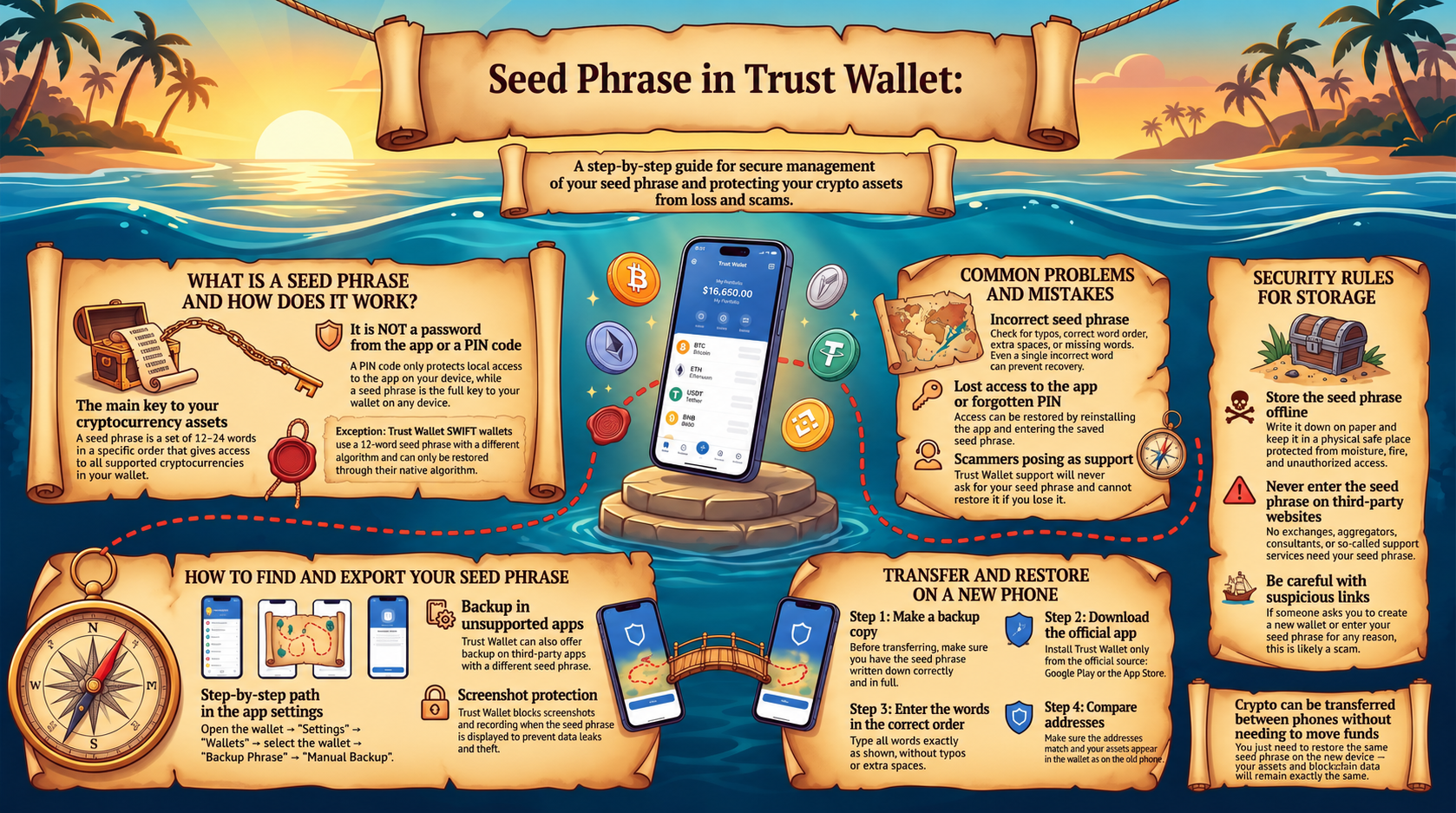
The seed phrase in Trust Wallet is a set of words that allows you to restore access to a standard non-custodial wallet on a new device. Anyone who gets this phrase essentially gains the ability to manage the funds, so it must never be shared with others or entered on third-party websites.
Important: Below we are discussing classic Trust Wallet models that use a secret recovery phrase. Trust Wallet SWIFT operates differently: it uses a passkey rather than a standard 12-word seed phrase.
What is a Seed Phrase in Trust Wallet
A seed phrase, recovery phrase, secret recovery phrase, and mnemonic phrase are different names for the exact same data used to recover a wallet. In Trust Wallet, it is used to restore the wallet after deleting the app, losing a phone, changing devices, or forgetting a local passcode.
Usually, a seed phrase consists of 12 to 24 words. The order of the words matters: the exact same sequence of words in a different order creates a different result or fails verification.
From the seed phrase, the wallet derives cryptographic keys and addresses for supported blockchains.
The seed phrase is not an application password, PIN code, or "account login." Trust Wallet is a non-custodial wallet: access to a classic wallet is determined by cryptographic keys, while the PIN and biometrics only protect the application on a specific device.
Where to Find and View the Seed Phrase in Trust Wallet
You can only view the seed phrase for a wallet that uses this recovery method and to which you already have access. In the current mobile interface, the path may vary slightly depending on the app version, but the logic is as follows:
- Open Trust Wallet.
- Go to the app settings.
- Open the wallet list and select the desired wallet.
- Open backup settings.
- Select manual backup / show secret phrase.
- Confirm the action with your passcode, Face ID, or another device protection method.
- Read the security warning.
- Write down the words in the exact order and store them in a secure place.
Trust Wallet may block screenshots or screen recording on the page with the secret phrase. This is done to reduce the risk of accidentally saving key data in your gallery or cloud backup.
If the settings for the required wallet do not have a seed phrase option, check the wallet type first. For example, Trust Wallet SWIFT uses a passkey and cannot be restored using a standard 12-word phrase.
Do not try to "find your seed phrase" through websites, bots, or third-party programs. A service that asks you to connect your wallet and enter secret words to "verify" them gets full control over your funds.
How to Restore Trust Wallet Using a Seed Phrase
When restoring via a seed phrase, Trust Wallet opens access to the exact same wallet associated with that phrase.
If the app is not installed yet, first download and install Trust Wallet from an official source, then proceed with recovery.
Next steps:
- Open Trust Wallet.
- Choose to add an existing wallet.
- Select the "Secret phrase" option.
- Choose the appropriate wallet type if the app offers a choice.
- Enter all the words of the seed phrase strictly in their original order.
- Check the spelling of each word and make sure there are no extra characters.
- Confirm the import / recovery.
- After loading, check your addresses and assets.
If a specific token does not show up after restoration, it does not mean the funds are lost. First, compare the address of the restored wallet in Trust Wallet with the original one and add the required asset to the interface if necessary.
If the address after recovery differs from what you expected, do not send funds to it automatically. Verify that you used the exact same seed phrase, wallet type, and import method used to create the original address.
How to Transfer Trust Wallet to Another Phone
If the wallet uses a seed phrase, transferring it to another phone essentially means restoring that same wallet on a new device.
Correct sequence:
- On the old phone, make sure you have an up-to-date backup of your seed phrase.
- Do not delete Trust Wallet from the old device until you verify the new installation.
- Install Trust Wallet on the new phone from an official source.
- Choose to add an existing wallet.
- Import the wallet using the secret phrase.
- Compare several public addresses with the old device.
- Check the display of main assets.
Only after successful verification should you decide whether you still need access to the wallet on the old device.
There is no need to transfer cryptocurrency between the old and new phone: after restoring via the same seed phrase, both devices gain access to the exact same blockchain addresses.
Do not leave the wallet active on unnecessary devices: the more devices have access to the keys, the more places where they can be compromised.
How to Log In to Trust Wallet from Another Device
Classic Trust Wallet does not have a regular email and password login like an exchange or online bank. To open the same wallet on another device, you must restore it using the seed phrase.
On the new device, you need to install the official app or, if a computer is required, use Trust Wallet in the browser, and then add the existing wallet.
The PIN or password from the old phone only protects the local app installation and does not transfer the wallet to a new device.
What to Do if Trust Wallet Says "Invalid Mnemonic Phrase"
The error "invalid mnemonic phrase" usually means that the entered sequence fails verification or does not match the expected format.
Check the following one by one:
- Are all words entered?
- Is the original order preserved?
- Are there any typos in the words?
- Were any punctuation marks, numbers, or extra characters added?
- Are there any extra spaces?
- Are you using the correct backup specifically for the right wallet?
- Is the correct import method selected?
Do not try to guess unknown words and do not send part of the phrase to support, chat, or an online service for verification. Never publish even partial seed phrase data.
If Trust Wallet accepts the phrase but different addresses appear after import, you might have used a seed phrase from a different wallet or selected a different import option.
What to Do if You Forgot Your Password or PIN in Trust Wallet
If you forgot your local password or PIN, access to the classic wallet can be restored using your saved seed phrase. After importing, you will regain access to the same addresses.
Before reinstalling the app or deleting the wallet, make sure the seed phrase is actually saved and written down correctly. If the active wallet is the only place with access and there is no backup, reckless app deletion can lead to permanent loss of access.
How to Log Out or Delete a Wallet from Trust Wallet
In Trust Wallet, you can lock the app, remove a specific wallet from the interface, or delete the app itself from the device.
Removing a wallet from the interface does not delete the blockchain address and does not erase transactions from the blockchain. It only removes local access to that wallet on a specific device.
Before removing, make sure to:
- verify that the seed phrase or other intended recovery method is saved;
- check that the backup belongs precisely to the wallet being removed;
- not rely solely on the device password or biometrics;
- if necessary, restore the wallet on another device first and compare the addresses.
How to Store a Seed Phrase Safely
The main rule: anyone who gets your seed phrase can gain control of your funds. Therefore, you must store the backup in a way that prevents both losing it and exposing it to outsiders.
Recommended practices:
- Write down the seed phrase in the exact order and keep the copy offline.
- Keep the backup separate from the phone where the wallet is installed.
- Protect the record from water, fire, and physical damage.
- Do not send the phrase to yourself via messenger or email.
- Do not paste it into notes, documents, or forms on random websites.
- Do not share it with "support," channel administrators, or unfamiliar specialists.
- Do not take photos of the phrase unless absolutely necessary.
- Do not enter it to claim an airdrop, unlock an account, or check a balance.
Do not use websites, bots, or apps that offer a "seed phrase generator," pre-made lists of seed phrases, or phrases "with a balance." A seed phrase must be generated securely by the wallet itself. If a phrase is provided by a third-party service or another person, it may already be compromised.
In some cases, Trust Wallet allows creating an encrypted cloud backup. This is not the same as saving a seed phrase in a regular cloud document or photo.
If you suspect that someone else has seen your seed phrase, treat it as compromised. Simply changing the app PIN does not solve the problem. It is much safer to create a new wallet with a new secret phrase and transfer your assets to the new addresses after verifying the network and details.
Conclusion
A seed phrase allows you to restore a classic Trust Wallet after changing or losing a device. Before deleting an old installation, make sure the backup is saved correctly, and after restoration, compare the wallet addresses. Never share your seed phrase with anyone and do not enter it on third-party websites.
FAQ
-
Can I restore Trust Wallet without a seed phrase?
This depends on the wallet type and configured recovery method. For a classic wallet with a seed phrase, losing a device along with the only copy of the seed phrase may mean recovery is impossible.
-
Can Trust Wallet support recover a lost seed phrase?
No. Trust Wallet is a non-custodial wallet, so the service does not store the user's seed phrase and cannot provide it upon request.
-
Can I use Trust Wallet on two phones simultaneously?
Technically, the exact same wallet with a seed phrase can be restored on multiple compatible devices. However, each additional device increases the number of places where the keys could be compromised.
-
Can I change the seed phrase in Trust Wallet?
You cannot simply replace the seed phrase of an existing wallet like a password. If the current phrase is compromised, you must create a new wallet with a new phrase and transfer assets to the new addresses.
-
Is it possible to brute-force or guess a seed phrase?
A correctly generated seed phrase is practically impossible to guess via brute force. Do not use services or programs that promise to find, crack, or check someone else's seed phrase.
-
What does a seed phrase look like in Trust Wallet?
For a classic wallet, it is a sequence of regular words in a strictly defined order. A seed phrase does not contain a wallet number, address, punctuation marks, or a PIN code.
-
Can I use a seed phrase from Trust Wallet in another wallet?
Sometimes a compatible seed phrase can be imported into another wallet that supports the same standard. However, the available networks and addresses might differ, so after importing, you should compare public addresses first.