How to Download, Install, and Create a Trust Wallet on Android and iPhone

How to download and install Trust Wallet on Android and iPhone

06 September, 2026

6 min

Author: Alisa Sokolova

Step-by-Step Guide: Where to Download Trust Wallet, How to Install the App on Android or iPhone, and Create a New Crypto Wallet

Content

How to Download, Install, and Create Trust Wallet on Android and iPhone

Trust Wallet is a free mobile non-custodial crypto wallet for Android and iPhone. The app can be installed from official stores, and on Android, also via the official APK.

Where to Download the Official Trust Wallet

The official Trust Wallet download page is located at trustwallet.com/download. From it, you can navigate to the App Store for iPhone, Google Play for Android, open the browser extension page, or download the official APK for Android.

For a phone, it is better to use links from the official Trust Wallet page. Third-party APK directories, advertisements, and clone sites should not be used: a fake app can look almost identical to the real one.

Trust Wallet is also available as a browser extension, so a separate version of Trust Wallet on PC and in a browser is used for computers.

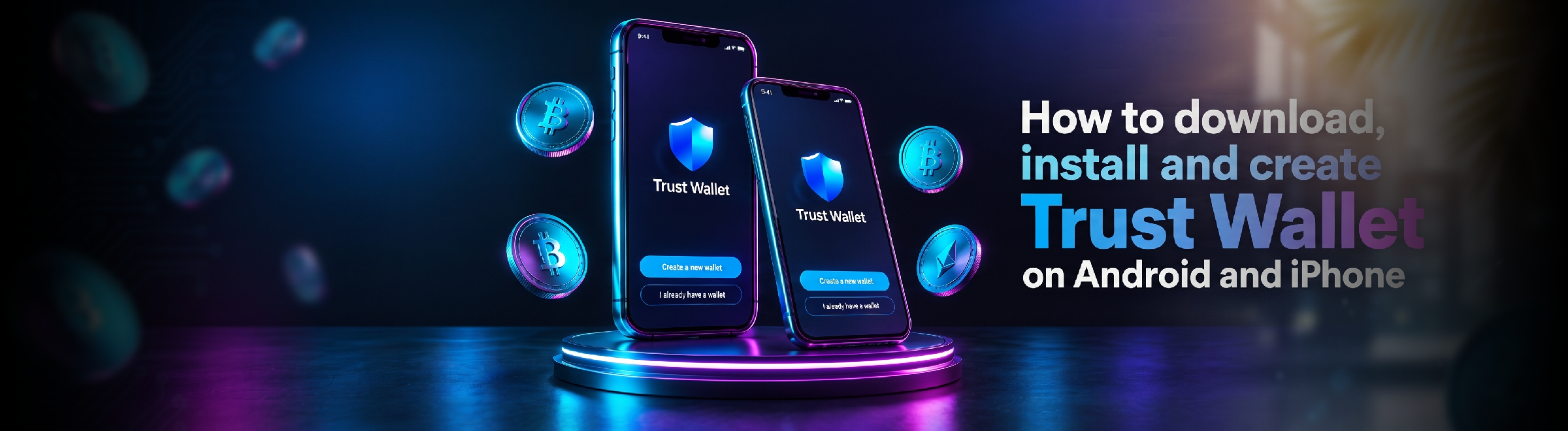
How to Download, Install, and Create a Trust Wallet on Android and iPhone. A visual guide to getting started safely with the Trust Wallet multi-chain wallet. The infographic contains four step-by-step sections: safely downloading the app exclusively from Infographic on Installing and Creating a Trust Wallet by Tron Pool Energy: safe downloads on Android and iPhone, creating a 12-word secret recovery phrase, setting up biometric authentication, and FAQs.

How to Download and Install Trust Wallet on Android

Via Google Play

The official Trust Wallet download page in a mobile browser. Open the download page. Go to the official Trust Wallet website on your mobile device. It's crucial to use official links to avoid downloading fake apps that might look exactly like the real one.
Selecting the Android platform to download Trust Wallet on the official website. Tap Download. On the download page, choose the "Download for Android" option. This button will safely redirect you to the official Trust Wallet app page within the Google Play Store.
The Trust Wallet app page on the Google Play Store with the install button. Tap Install. Once you are redirected to the Google Play Store, verify the app details (developer: DApps Platform, Inc.) and tap the blue "Install" button to begin downloading the application to your Android device.
Opening the newly installed Trust Wallet application from the Google Play Store. Tap Open. After the installation is complete, the "Install" button will change to "Open". Tap it to launch Trust Wallet and start setting up your new self-custody crypto wallet.

The primary installation method on Android is via Google Play.

  1. Open the official Trust Wallet Download page.
  2. Click Download for Android.
  3. On the Google Play page, verify the app and click "Install".
  4. After the installation is complete, open Trust Wallet.

The app is distributed for free. There is no fee for downloading and creating a standard wallet itself.

Via the Official APK

The official Trust Wallet app download page in a mobile browser. Open the download page. If the Google Play store is not available on your device, you can install the wallet manually. Open your browser and go to the official download page at trustwallet.com/download.
Selecting the official Trust APK installation file download for Android. Select Trust Apk. On the opened page, find the blue "Trust APK" (or Download APK for Android) button and tap it. It is crucial to download the installation file only from the official website, avoiding third-party builds.
Browser pop-up window requesting permission to download the TrustWallet.apk file. Allow the installation. The browser will display a system notification about downloading the TrustWallet.apk file. Confirm the action by tapping "Download". If your operating system requests permission to install apps from unknown sources (from this browser), grant it in the device's security settings.
The icon of the successfully installed Trust Wallet app on the Android smartphone home screen. Install the file and open Trust Wallet. Wait for the download to finish, open the downloaded APK file, and follow the system prompts to complete the installation. After a successful process, the Trust Wallet icon will appear on your phone's home screen — tap it to launch the app.

If Google Play is unavailable on the device, Trust Wallet can be installed via the official APK.

  1. Open trustwallet.com/download.
  2. Select Download APK for Android.
  3. Allow the installation of apps from this source if Android requests such permission.
  4. Install the file and open Trust Wallet.

The APK should only be downloaded from the official Trust Wallet page. Using old, modified, and third-party builds is not recommended.

How to Install Trust Wallet on iPhone

The official Trust Wallet download page in the Safari browser on iPhone. Open the official Trust Wallet Download page. To install the crypto wallet on your iPhone, open a mobile browser and go to the official download page (trustwallet.com/download). Using the official link will protect you from downloading fake apps.
The download button for the Trust Wallet app for the iOS operating system. Select Download for iOS. On the loaded page, find and tap the blue "Download for iOS" button with the Apple logo. This action will safely redirect you to the original app's page.
The Trust Wallet crypto wallet page in the App Store with the download button Go to the App Store. After being automatically redirected to the App Store, tap the "Get" (or Download) button. It is recommended to verify the developer (DApps Platform, Inc.), even if you found the app through a search.
Confirming the Trust Wallet app installation on iPhone using Face ID. Confirm the installation. The iOS security system will request confirmation to download. Confirm the app installation using your device's standard method: via Face ID, Touch ID, or by entering your Apple ID password.
The icon of the successfully installed Trust Wallet app on the iPhone home screen. Open the app. Wait for the download and installation to complete. The Trust Wallet icon will appear on your smartphone's home screen — tap it to launch the app and proceed to create or restore a wallet.

On iPhone, Trust Wallet is installed via the App Store.

  1. Open the official Trust Wallet Download page.
  2. Select Download for iOS.
  3. Go to the App Store.
  4. Click "Get" (or "Download") and confirm the installation via Face ID, Touch ID, or Apple ID password.
  5. After installation, open Trust Wallet.

If the app was found through the App Store search, it is still useful to cross-check it with the link from the official Trust Wallet page.

How to Create a New Trust Wallet

The Trust Wallet start screen with a button to create a new self-custody wallet. Tap "Create a new wallet". On the app's home screen, select the blue "Create a new wallet" button. This feature will launch the registration process for a new standard crypto wallet on your device.
The setup screen for a six-digit numerical passcode to lock the Trust Wallet app. Set a passcode. The system will ask you to create a passcode (a digital code). Enter a secure 6-digit combination and remember it: this password is required to unlock the wallet and protect your assets from unauthorized access.
A screen notifying that the wallet is ready and a "Skip" button to proceed to security settings. Continue creating the wallet. The app will notify you that your wallet is ready and prompt you to add funds. To proceed to the crucial step of creating a backup, tap the "Skip" button in the upper right corner of the screen.
The menu for choosing a seed phrase backup method in Trust Wallet with the manual option highlighted. Save the 12 words. Go to the seed phrase (secret phrase) backup section. Choose the "Back up manually" (or Back up now) option so the app displays the 12 words, which you must write down on paper in the strict exact order and hide securely.
The process of confirming the secret seed phrase by selecting the correct words for the specified positions. Confirm the seed phrase. To complete the setup, pass the verification to ensure the phrase was written down correctly. The app will ask you to select the correct words for a few random positions (e.g., for words #1, #4, #7, and #10) — select them and tap "Confirm".
The main dashboard of the Trust Wallet crypto app displaying balances and asset management buttons. The wallet is ready to use. After completing the security setup, the main wallet interface will open, displaying a list of basic cryptocurrencies. You can now safely deposit funds, receive, and send tokens through your new crypto wallet.

Various types of wallets are available in Trust Wallet. Below is the creation of a standard self-custody wallet with a 12-word secret phrase. SWIFT is protected by a passkey and does not use the standard 12-word phrase.

  1. Open Trust Wallet and select Create a New Wallet.
  2. Set up a passcode for the app.
  3. Continue creating a standard wallet with a secret phrase.
  4. Save the 12 words in the correct order.
  5. Confirm the secret phrase if the app requests verification.
  6. After completion, the main wallet screen will open.

Creating a standard wallet is not an exchange registration: a separate account with a login and password is not required to store cryptocurrency.

These 12 words allow you to restore access if you change or lose your phone, so the Trust Wallet seed phrase must be saved before any funds arrive in the wallet.

If a wallet has already been created before, there is no need to create a new one. Use the addition or restoration of an existing wallet to regain access to previous addresses and assets.

How to Set Up Trust Wallet After Installation

After creation, performing a basic setup is sufficient.

  • Enable app lock and biometrics if available.
  • Ensure that backup data is saved and accessible only to you.
  • Add the necessary coins and tokens to the main screen.
  • Before receiving funds for the first time, check the selected asset and network.

After creation, you can add the necessary assets. If you plan to use Tether on the TRON network, USDT TRC-20 in Trust Wallet must be selected specifically on the TRON network.

After the initial setup, the main sections and features of Trust Wallet can be used for receiving, sending, exchanging, and other operations.

Life Hack: How to Send USDT from Trust Wallet Without Buying TRX

If you’ve just created a Trust Wallet and are planning to send USDT on the TRON network for the first time, there’s an important detail to know: a regular transaction requires TRX to pay for network resources.

You don’t have to buy TRX specifically for a single transfer. Instead, you can rent Energy in advance and use it to cover the transaction.

Cut your USDT TRC-20 costs with Tron Pool Energy. Safe, transparent and optimized for every transaction. Save up to 80% on TRON fees when sending USDT TRC20. Use TRON Energy instead of burning TRX to reduce transaction costs on the TRON network. Energy connects to your non-custodial wallet and helps you send USDT with lower fees.

With Tron Pool Energy, you can connect the required amount of Energy directly to your TRON address. You only need to provide your public wallet address. There is no need to connect Trust Wallet or share your seed phrase or private key.

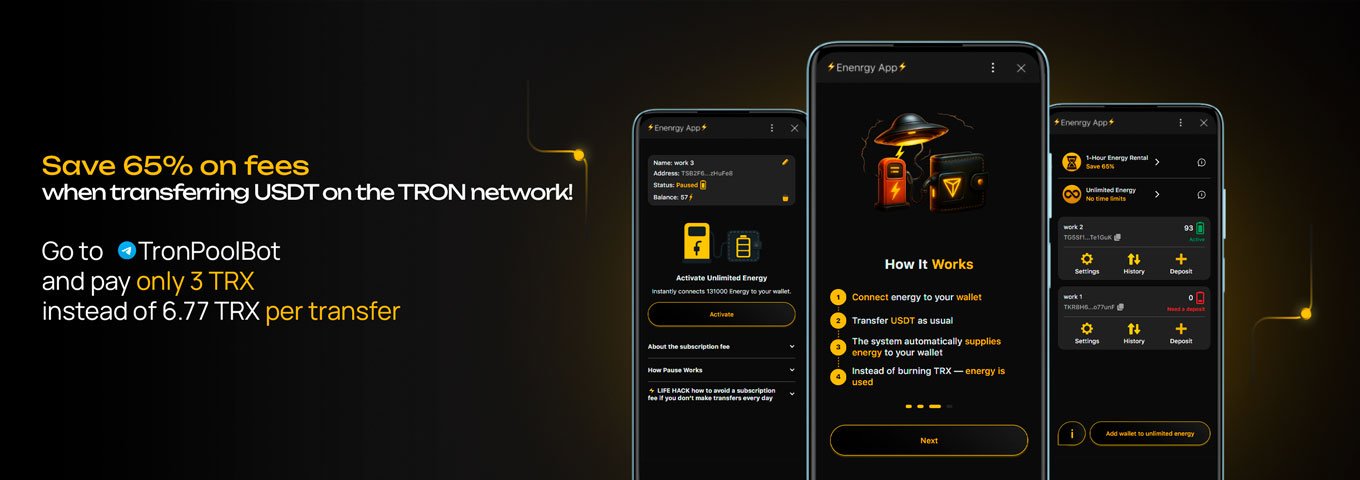
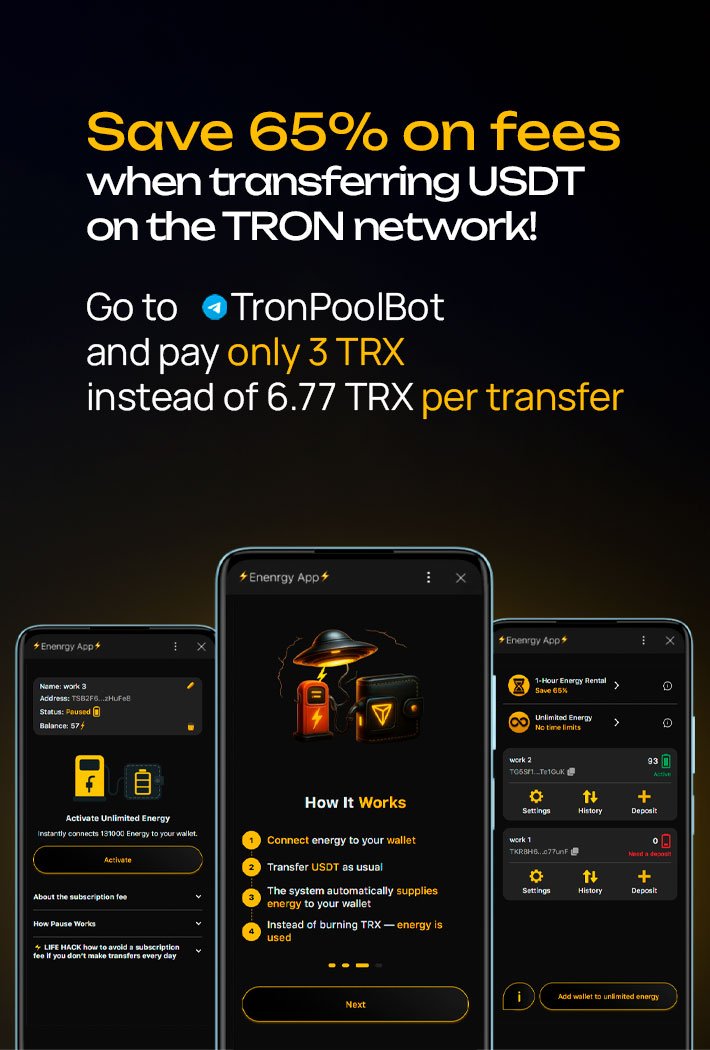
Depending on the type of transfer, the cost can be as little as 3 TRX for 65,000 Energy or 6 TRX for 131,000 Energy, compared with approximately 6.77 TRX and 13.37 TRX when paying transaction fees in the usual way.

👉 Connect Energy: Tron Pool Energy or use the Telegram bot @TronPoolBot.

This is especially convenient if you don’t want to keep TRX in your wallet specifically to pay fees for USDT transfers.

How to Update Trust Wallet

It is best to update the app through the same official source from which it was installed.

  • On Android, open Google Play, search for Trust Wallet, and click "Update" if a new version is available.
  • On iPhone, update the app via the App Store or enabled automatic updates.
  • If the official APK was used, download the new version from trustwallet.com/download.

A standard app update does not require creating a new wallet. It is better to check the current version numbers in the app store or on the official download page because they change regularly.

Conclusion

Trust Wallet on Android and iPhone is best installed via the official download page with a redirection to Google Play or the App Store. After installation, you can create a standard self-custody wallet, save the recovery data, and perform a basic setup.

FAQ

  • Can I download Trust Wallet for free?

    Yes. The app can be downloaded and installed for free. Fees appear during specific blockchain operations or when using third-party services, not for the installation.

  • Is registration required in Trust Wallet?

    For a standard self-custody wallet, the usual registration with a login and password is not required. The user creates a wallet and controls access to it independently.

  • What should I do if a Trust Wallet was already created before?

    Install the official app and add or restore the existing wallet. A new wallet is only needed if you want to create separate new addresses.

  • Can Trust Wallet be installed on an iPad?

    Yes, if the device supports the current version of the app from the App Store. It is best to check the iPadOS requirements on the Trust Wallet page in the store.

  • Do I need to download an old version of Trust Wallet?

    Usually no. For security reasons, it is better to use the current official version from Google Play, the App Store, or the official APK from the Trust Wallet website.